Article from
New Financial Chart and Individual Tile Updates.
With the updates to the financial reports, the financial tiles have been reviewed and revised. Here are the optimizations made.
New Tile: Income / Expenditures (1)
The new tile displays the financial report in a compact form. You can now display it in the reports dashboard as needed. Clicking on the title and the monthly bar takes you directly to the detailed report. If you do not record payments in MOCO, it is advisable to replace the cash flow tile with this one.
.png "Neues Finanzchart und einzelne Kachel-Updates") (English image not yet available)
(English image not yet available)Update of the Income and Expenditures Tiles
The tile "Income" (2), formerly known as "Invoiced & Billable", now corresponds to the financial report and includes all invoices and planned invoices.
The distinction of which portion is unpaid is no longer shown. This information can still be found in the debtor management area.
The distinction of which portion is unpaid is no longer shown. This information can still be found in the debtor management area.
- Use the "Total Invoiced" tile in the dashboard if you want to see directly which amount is still outstanding for the chosen year (4).
- In the invoice list, you have the quickest overview of all open and overdue invoices (across years) when you use the smart filters!
The tile "Expenditures" (3) now includes all fixed costs (net) and planned expenditures. Therefore, the display of the unpaid status is omitted.
- Use the "Total Expenditures" tile in the dashboard if you want to see directly which amount is still outstanding (without payment). Clicking on the amount will filter the expenditures list directly for all expenditures of the year for which the payment has not yet been recorded.
Update of the Total Figures Tiles
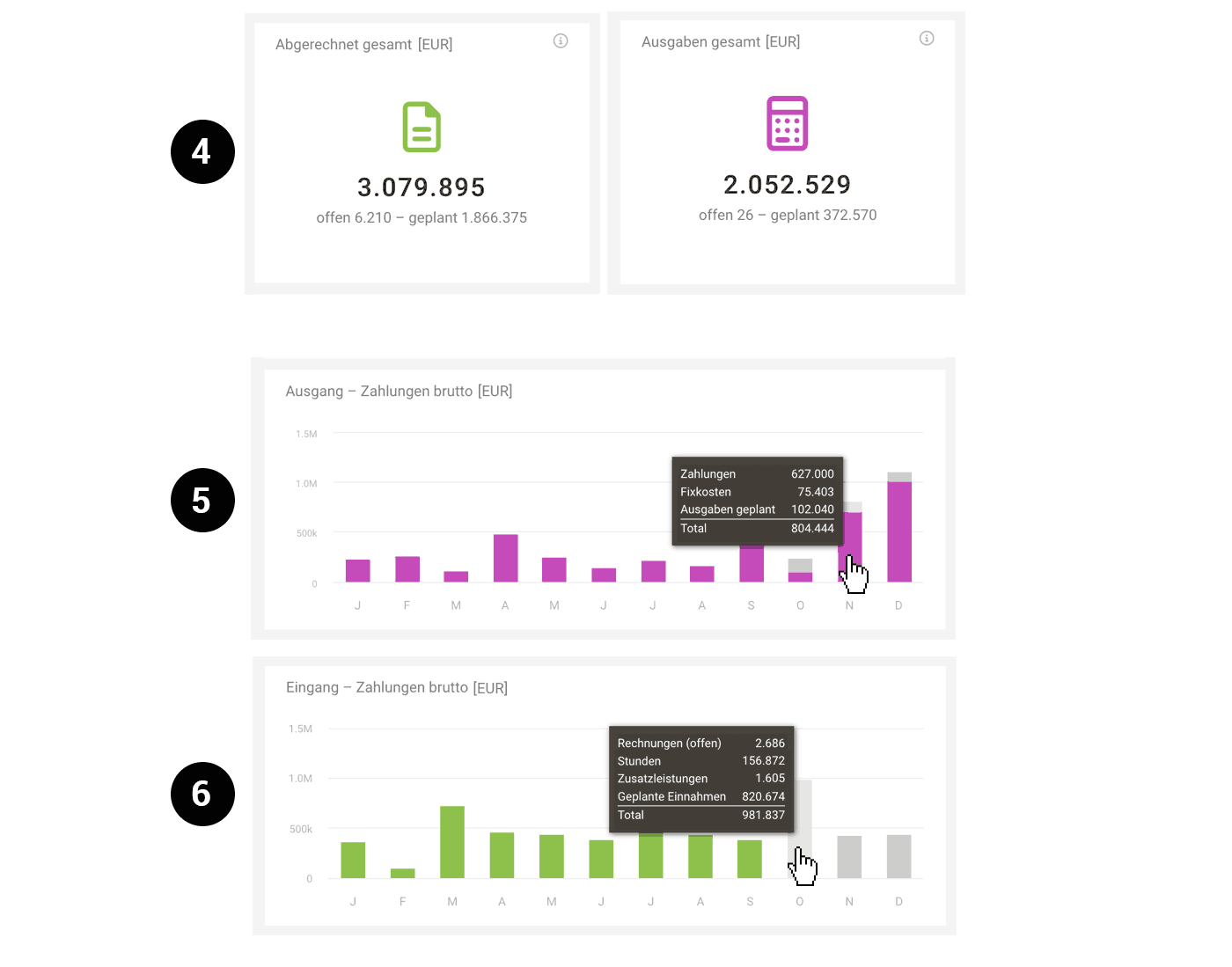
The tile "Total Invoiced" (4) now also shows the amount of planned income. The tile "Total Expenditures" (4) behaves similarly and now includes all fixed costs (net).
 (English image not yet available)
Update of the Inflow and Outflow Tiles
The tile "Outflow – Payments Gross" (5) now shows completed and planned payment outflows in a bar. The tooltip displays the composition in a table format.
The tile "Inflow – Payments Gross" (6) now also shows the planned income similar to the cash flow total report. The tooltip of the monthly bar displays the composition in a table format.
The tile "Inflow – Payments Gross" (6) now also shows the planned income similar to the cash flow total report. The tooltip of the monthly bar displays the composition in a table format.








