Article from
Billing: Convert to Days in the Timesheet Too
From now on, you can show billable hours not only on the invoice, but also in the attached timesheet as days.
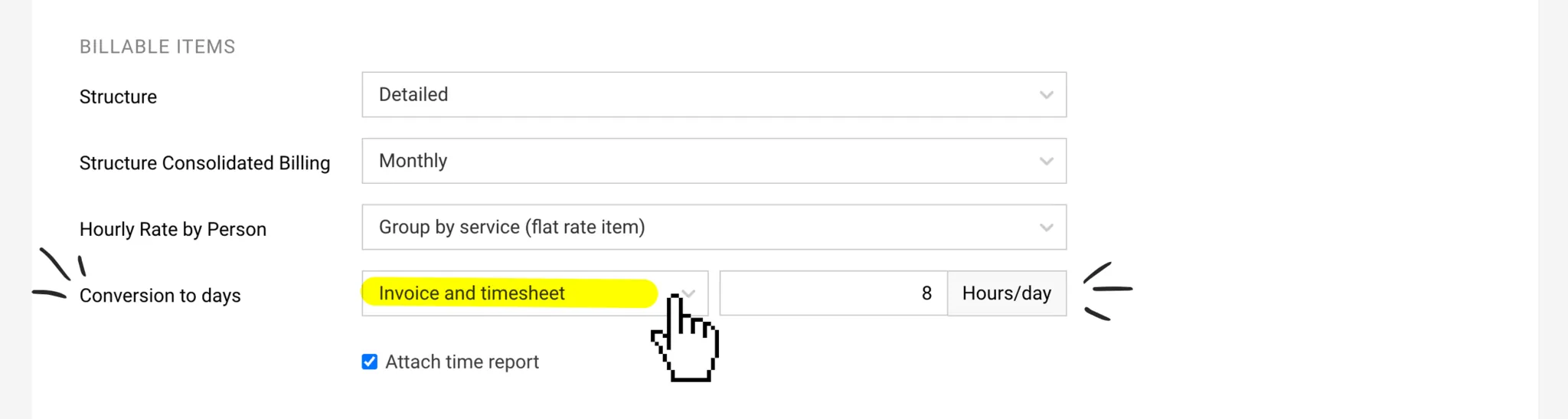
Under "Settings" > "Billing" > "General", you will now find three options under "Convert to Days":
- Disabled (default) – The recorded hours are billed as they are
- Invoice Only – Billable hours are converted into days on the invoice
- Invoice and Timesheet – In addition to the invoice, the timesheet also shows days
This setting only applies to timesheets created together with an invoice via "Billable Items". Timesheets you create via Project, Time Tracking, Client, or globally will continue to show hours.
Day Rates in the Quote
MOCO generally works with hours. As before, you are free to calculate in days in the quote. When the quote is transferred into a project, hours are calculated automatically.