Article from
Enhancements for Bulk Invoicing.
In preparation for e-invoice creation, bulk invoicing receives a minor update: Invoicing can now be more targeted and controlled, even with different invoice formats.
Control Options for Bulk Invoicing
Check Prerequisites
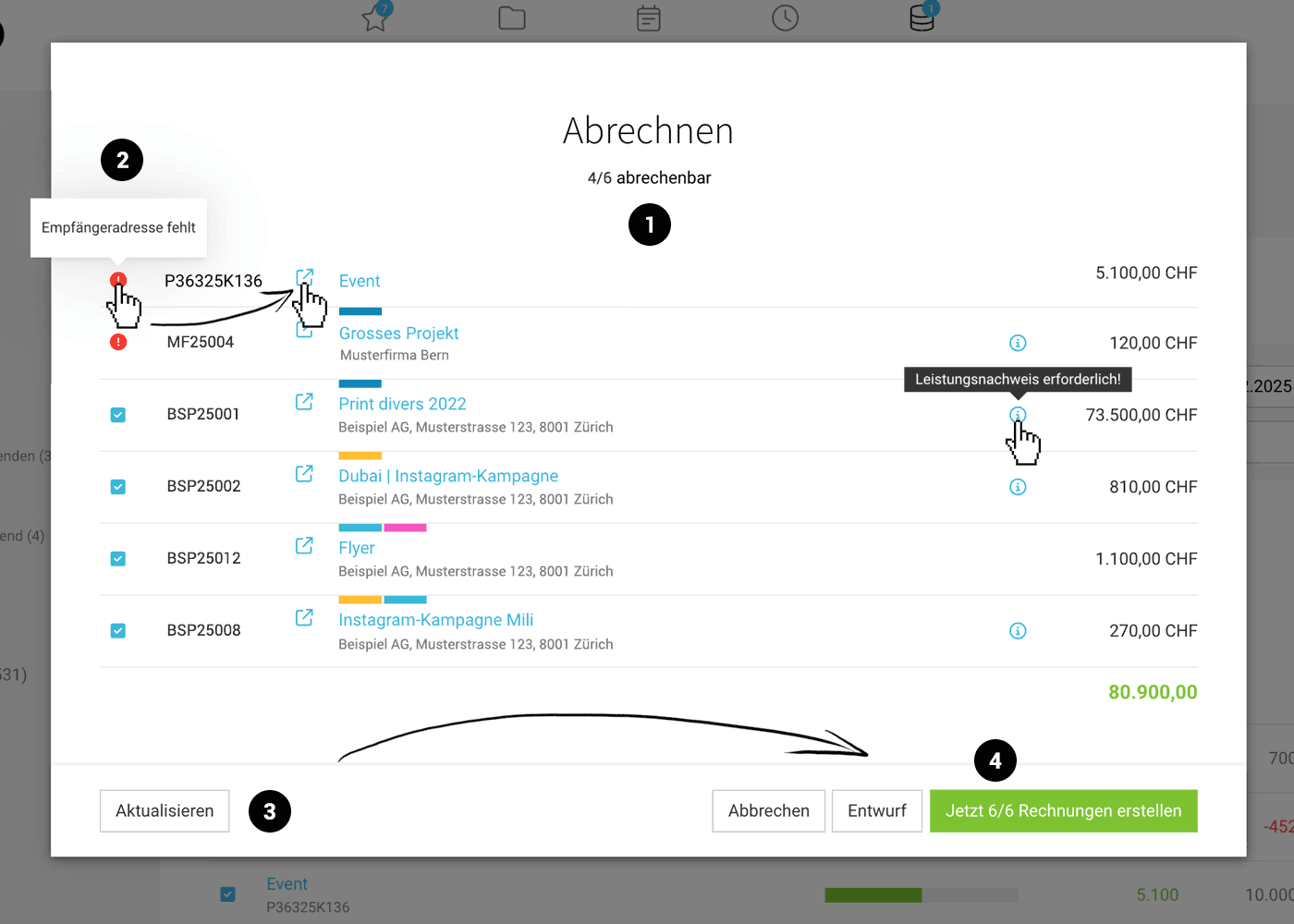
In the new intermediate step, MOCO will notify you if a project does not meet all the prerequisites for invoice creation. Just as you are accustomed to in other areas (e.g., bulk mailing). Benefits:
- Targeted overview of all selected projects
- Information on how many invoices can be successfully created (1)
- Tooltip information on which prerequisite is missing (2)
- A special invoicing note recorded for the project is displayed via the blue "i"
 (English image not yet available)
Quickly Correct and Update as Needed
By clicking on the icon or the linked project name, you open an affected project in a new window. Add the missing details, close the window to return to bulk invoicing.
With the update option (3), you can have MOCO check again – and then create the invoices with confidence as a draft or directly (4).
With the update option (3), you can have MOCO check again – and then create the invoices with confidence as a draft or directly (4).
Final Information and Direct Link to Invoices
MOCO provides final information on how many invoices were successfully created and for what amount and offers the option to jump directly to the corresponding list. The created invoices are pre-selected for bulk mailing!
Bulk Invoicing Directly via Smart Filter "Billable"
The automatic creation of multiple invoices can be initiated in the "Projects" area and under "Invoicing > Billable". The following has been optimized:
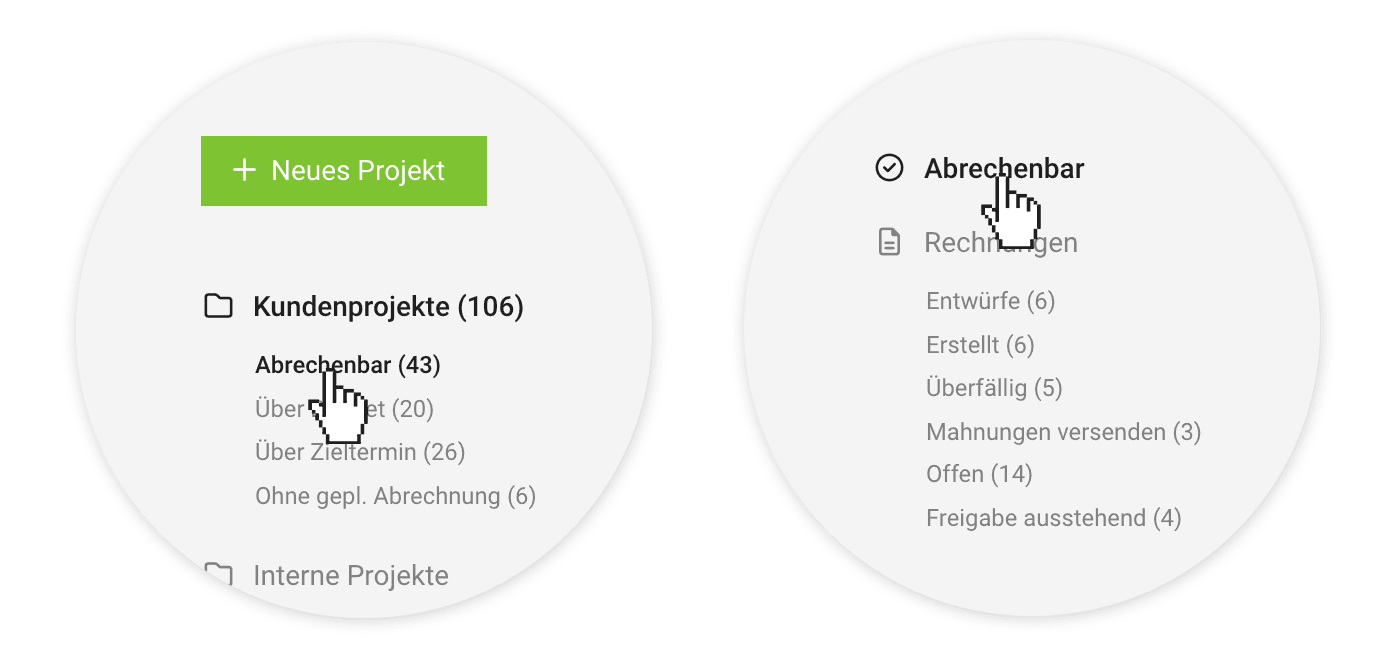
Location under "Projects" Becomes More Specific
The bulk action (Invoicing) moves from the general "Client Projects" list to the Smart Filter "Billable". Here, projects with billable items are already specifically filtered. This not only improves the overview – the logic also follows other areas where targeted bulk actions are offered based on a necessary feature. Example: bulk mailing of invoices under "Invoicing" in the Smart Filter "Created".
 (English image not yet available)
(English image not yet available)Optimized Standard Period under "Invoicing" > "Billable"
By default, all billable amounts are displayed. This means you can then specifically narrow it down if needed.








