Article from
Check Actual vs Planned Directly on Each Project or Client
In the Project and Client report, you can now see where actual and planned hours differ – and who worked how much on the project or client, and when.
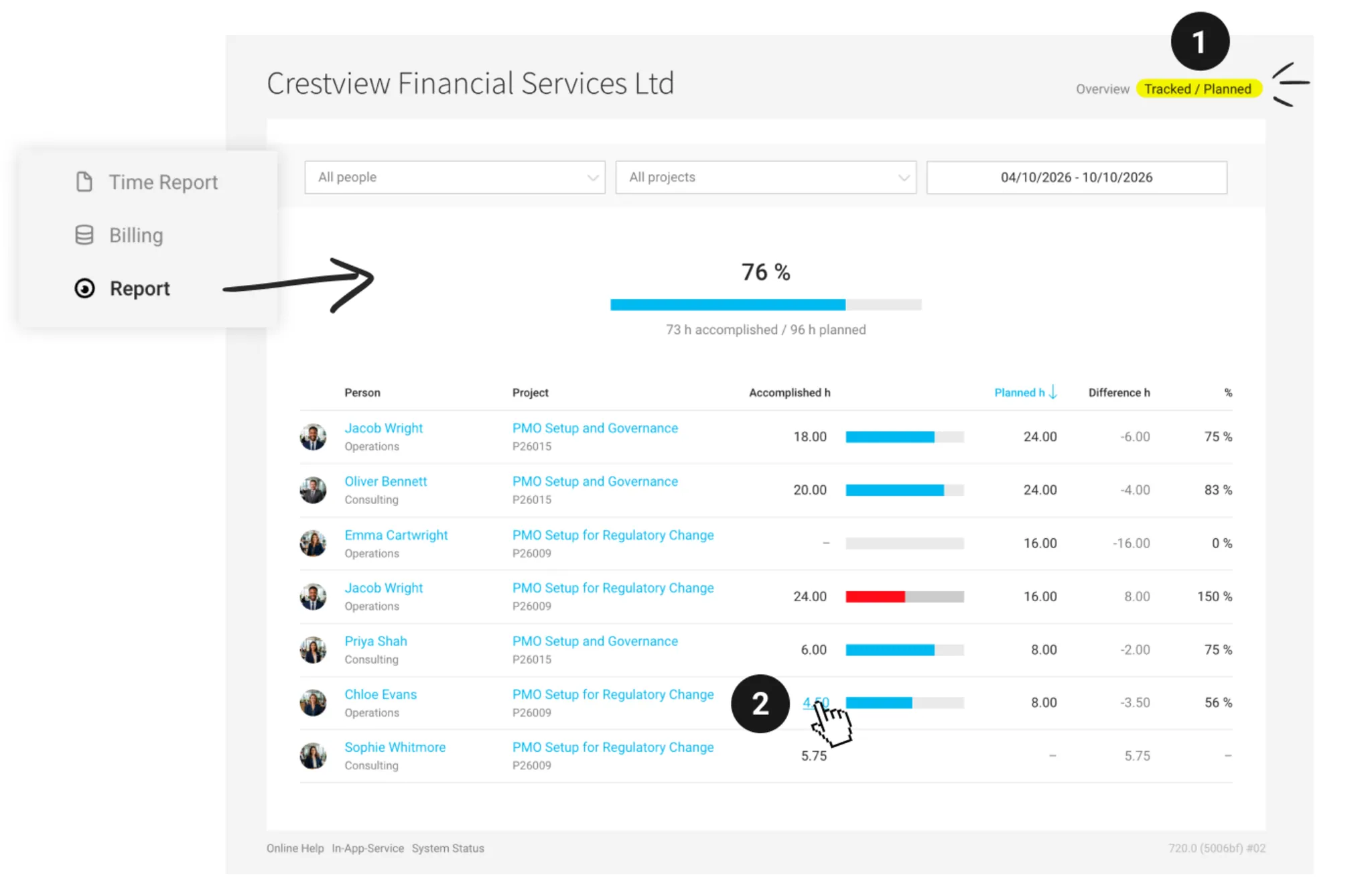
Since the beginning of the year, you’ve been able to find the “Actual / Planned” report under Reports > Planning. It shows, across all projects, each person’s actual and planned hours, the difference, and the completion rate as a percentage.
You can now also find this analysis directly on an individual project or in the Client report (1). This means you can immediately see when more or less work has been done on a project or for a client than planned – and take corrective action in good time.
You can now also find this analysis directly on an individual project or in the Client report (1). This means you can immediately see when more or less work has been done on a project or for a client than planned – and take corrective action in good time.
As in the overall report, you can click on the actual hours (2) to open the pre-filtered Timesheet and check in detail what has been recorded.