Article from
Shortcuts in MOCO: The Best Keyboard Shortcuts at a Glance
Shortcuts make MOCO noticeably faster to use. Here are the top five for your day-to-day work – do you already know them all?
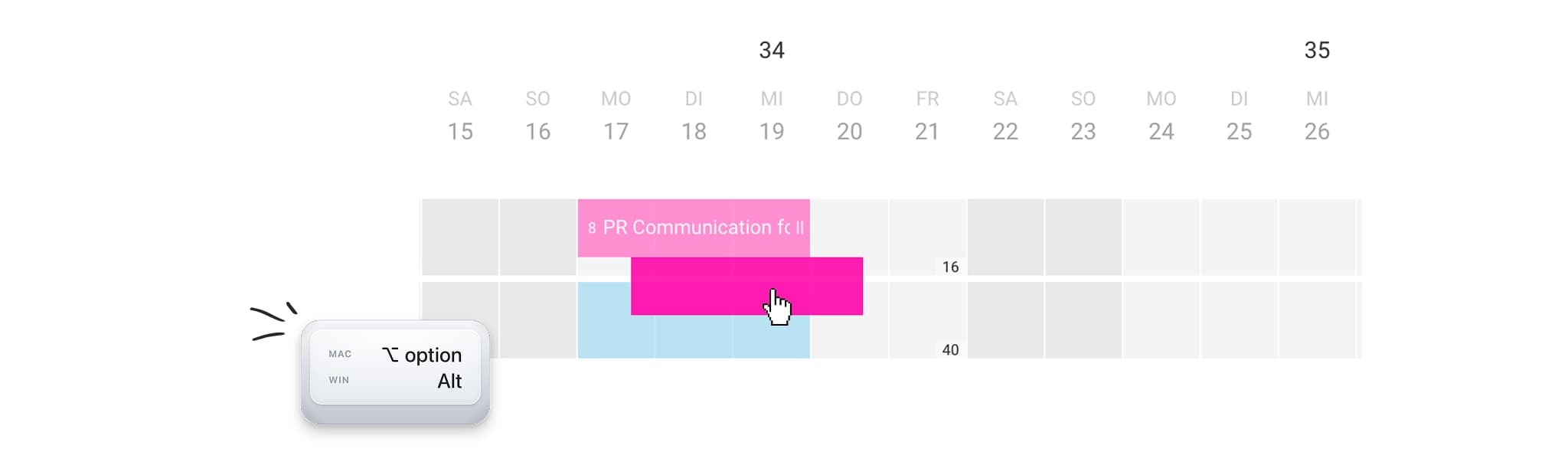
Copy entries – ALT/OPT + Drag
The same principle applies in Planning, Time Tracking, and Quotes & Invoices: you can move entries using drag and drop. If you hold down the ALT/OPT key while doing so, the entry is copied instead.
 (English image not yet available)
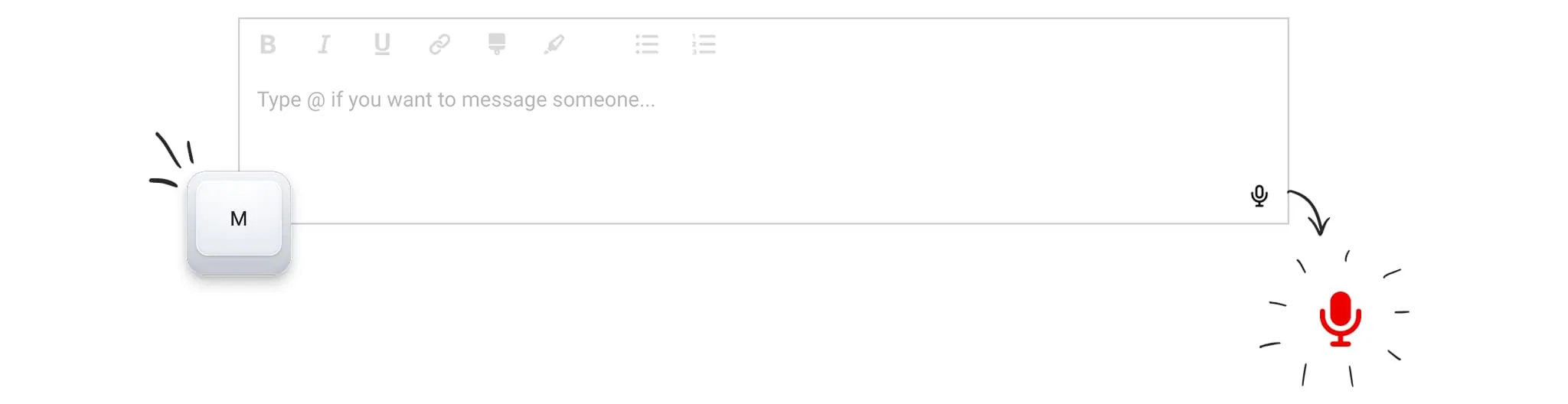
Start voice input – M
M starts voice input – in Time Tracking and anywhere there is a comment field. Just speak, and MOCO will type for you. This requires opting in via the AI settings under Settings > Account > AI.
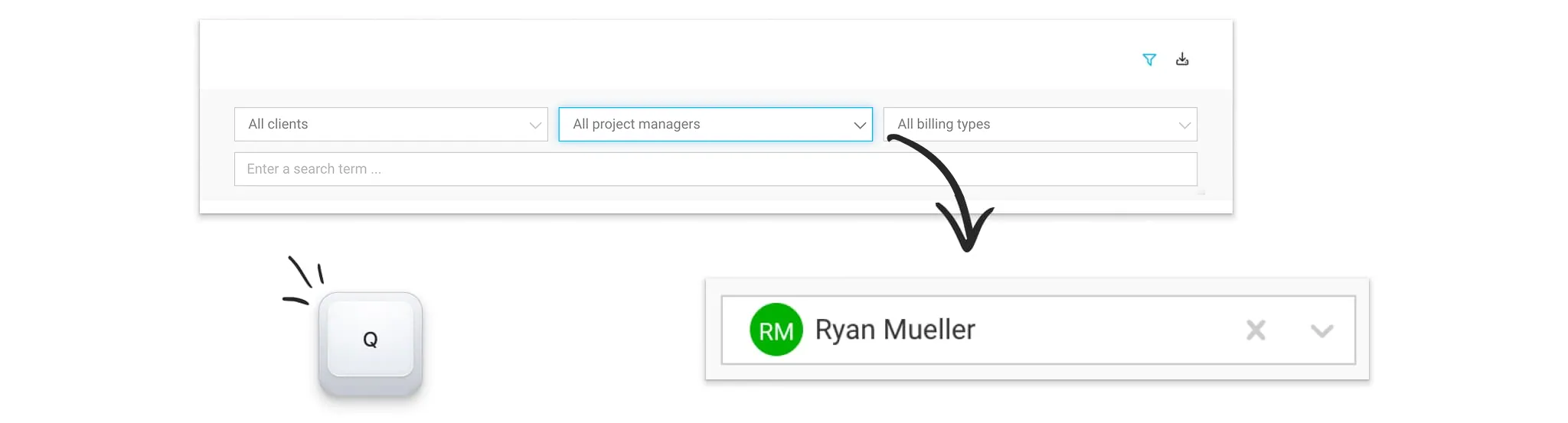
Show your own items – Q
Q filters lists to show only your own projects, leads, contacts, clients, and purchases. It also works for purchase approvals, leave requests, and in Planning. One keypress, and the list shows only what is relevant to you.
Show/hide filters – F
F expands or collapses the filter area in lists. Sounds simple, but it saves a lot of clicks in day-to-day work – especially if you often switch between filtered and unfiltered views.

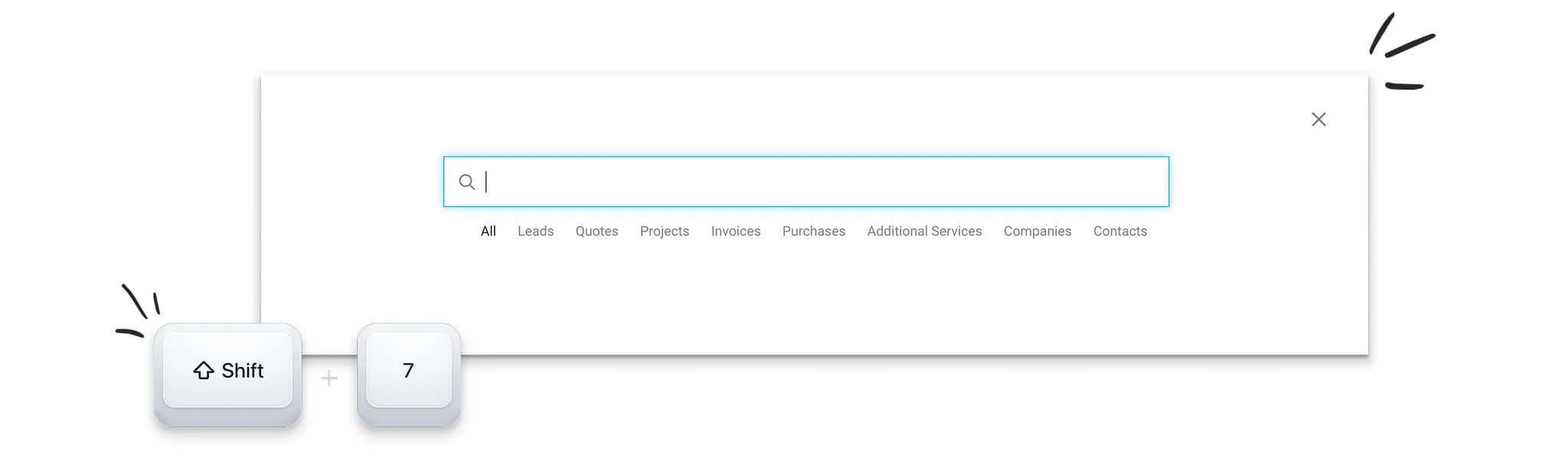
Global search – /
/ (forward slash, via Shift + 7) opens global search. From there, you can jump straight to clients, projects, invoices, contacts, and more – without having to navigate to the right section first. Once you get the hang of search, you’ll hardly navigate any other way.
More shortcuts in the manual
Check the manual to see which other keyboard shortcuts could make working with MOCO even easier.