Alter News-Artikel!
» Hier geht's zur aktuellen Online-Hilfe
Article from
Acquisition: Consider Leads in Capacity Planning.
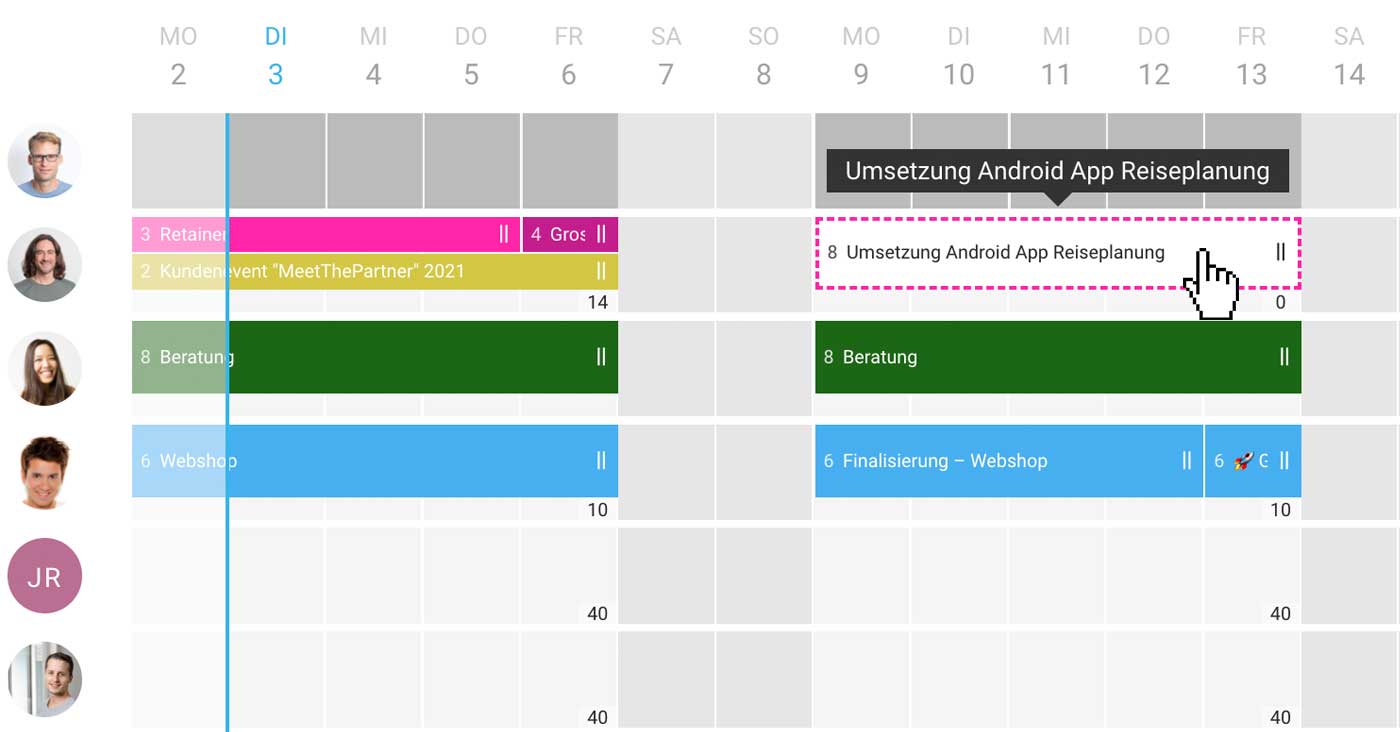
Want to reserve personnel early for project inquiries and identify potential bottlenecks in advance? You're all set. Simply include the major leads in your planning. This can now be done directly without detours. Once commissioned, you create the project and can take over the planning.
 (English image not yet available)
Planning
Distinction by dashed border
Planned leads are displayed in white with a dashed border, unlike projects (see title image). The colour can be selected or adjusted just like with projects.
Enter leads
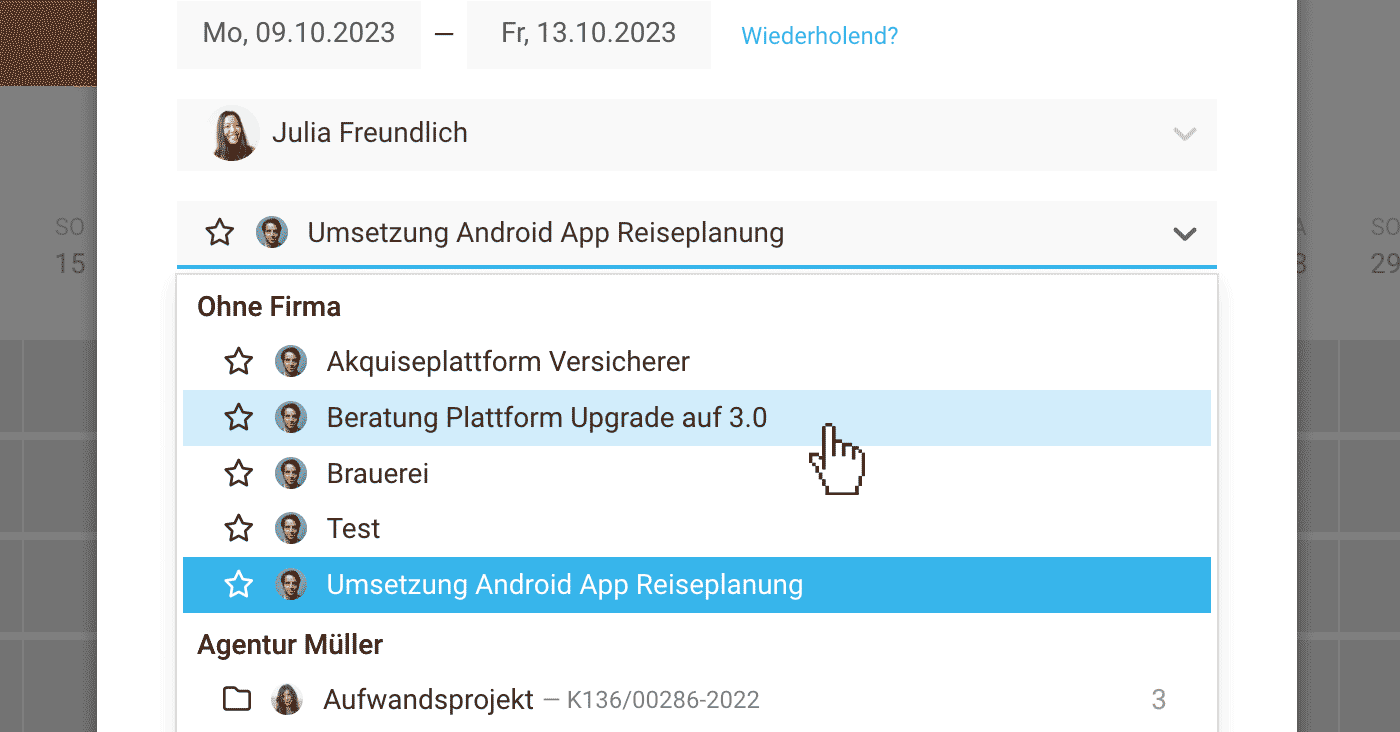
You can select and plan leads directly in the familiar entry popup, just like projects.
 (English image not yet available)
Planned leads are displayed in white with a dashed border, unlike projects (see title image). The colour can be selected or adjusted just like with projects.
Enter leads
You can select and plan leads directly in the familiar entry popup, just like projects.
(English image not yet available)Transfer to Project
Upon commissioning, set the lead to "Won" and create the project. If you select the "Take over planning" checkbox at this step, all planning entries will be transferred to the project.
Adjust afterwards
You can also adjust an entry afterwards by simply choosing the new project instead of the lead. For a series entry, this changes all entries with one click.
Adjust afterwards
You can also adjust an entry afterwards by simply choosing the new project instead of the lead. For a series entry, this changes all entries with one click.
Lead lost
If you do not win the contract, set the lead to "Lost" or "Cancelled". As with an archived project, softened entries will alert you to entries that may need to be deleted.
Deactivate leads for planning
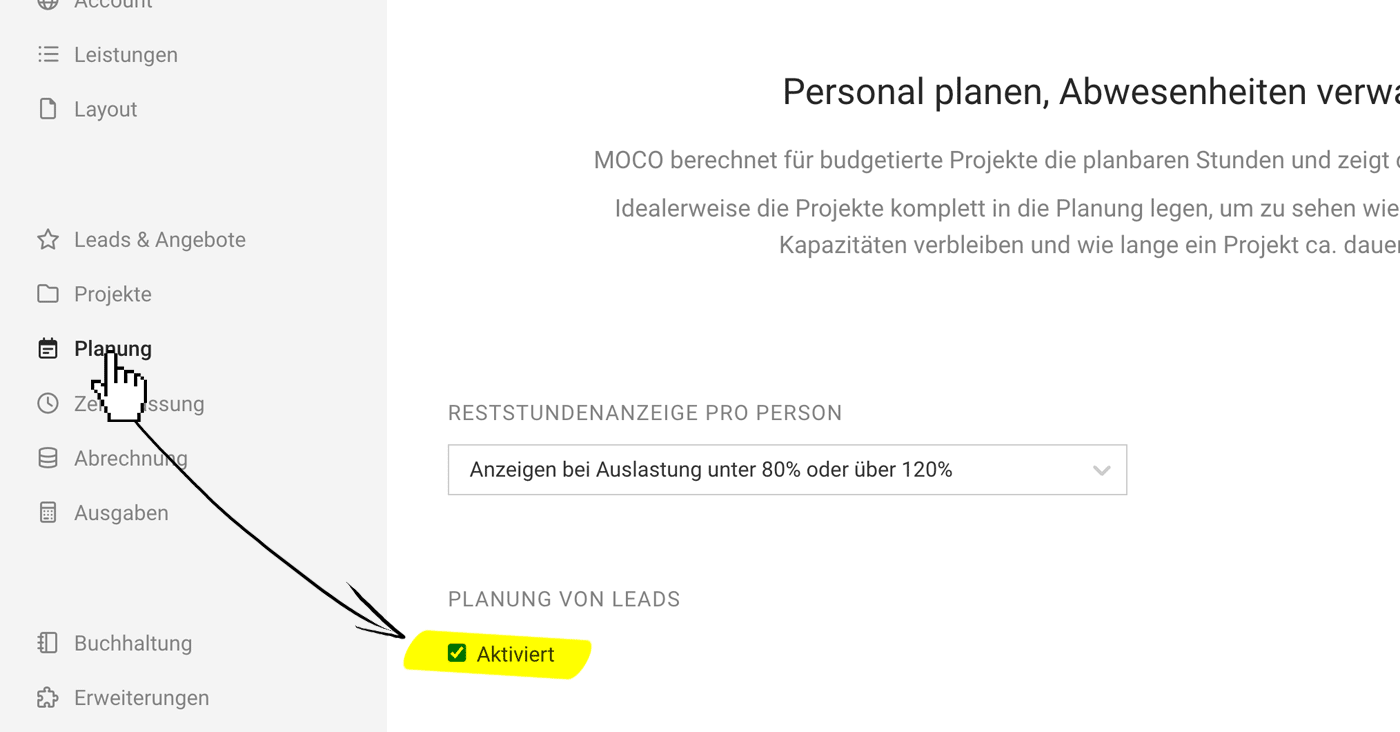
If you do not want leads to be offered in planning, deactivate the planning of leads in the settings under "Planning".
 (English image not yet available)
(English image not yet available)







