Article from
Task Planning with MOCO.
Are you looking for a simple way to plan tasks for your weekly meetings and want all employees to access their tasks directly in the time tracking system? You can achieve such straightforward task planning with MOCO.
How MOCO differs from Task Management & Collaboration
MOCO focuses on project business – emphasizing project administration and business figures.
To avoid becoming an unwieldy all-in-one solution, MOCO distinguishes itself from the realm of Task Management & Collaboration. This area includes numerous functionalities that are far removed from business management. There are already many excellent professional tools that cover this project management. MOCO offers a free integration with many of these tools.
Mini Task Management & Collaboration with MOCO
If you are only looking for a simple ToDo list option for your teams, MOCO can cover this with existing functionality. The current tasks of the teams can be planned in more detail and discussed together – for example, in a team meeting. They are then always accessible to employees as a ToDo list in the time tracking system. Another advantage: Time tracking for the correct project is simplified.
Project Tasks: Planning & Display in Time Tracking
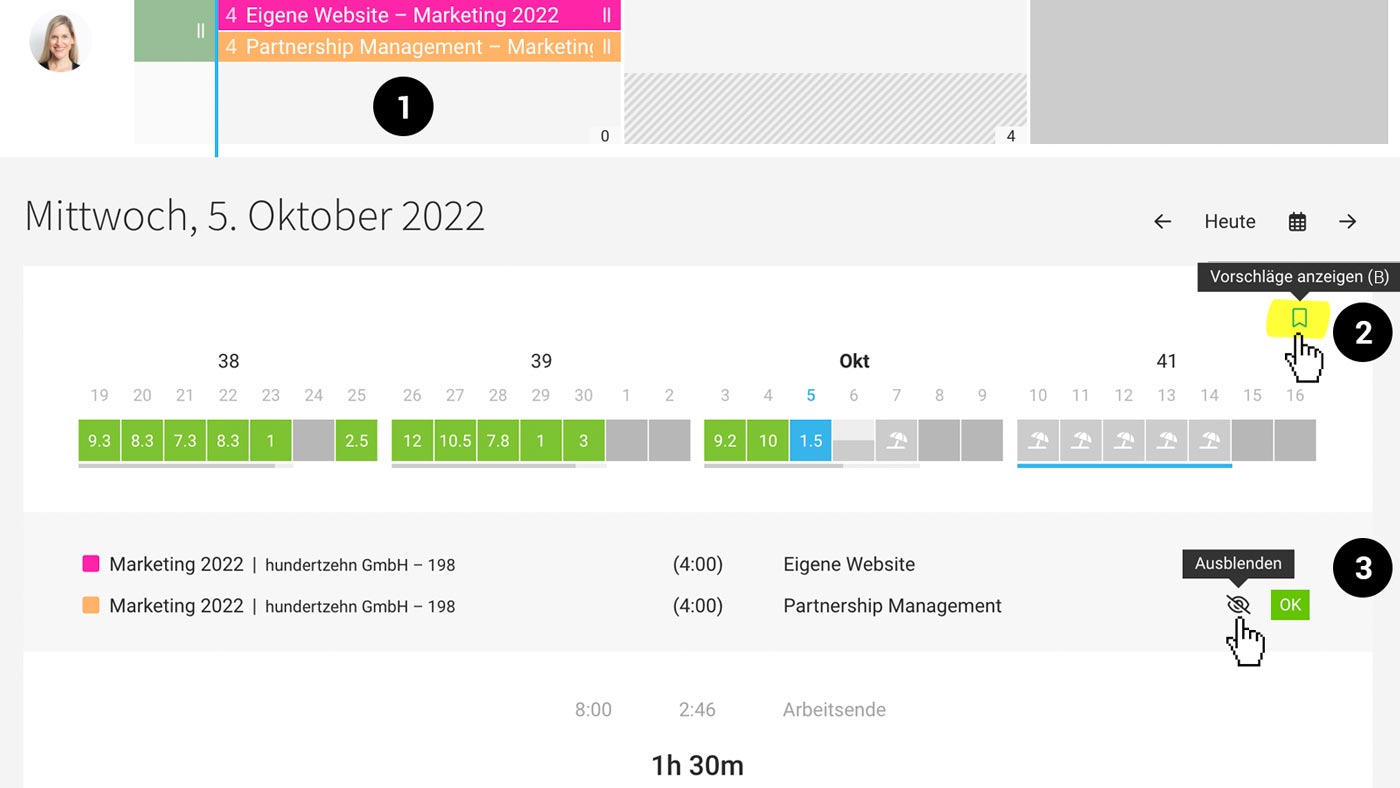
Project tasks can be planned. The scheduled person receives a weekly overview via email and the ToDo list directly in the time tracking system. Time entries can be created directly.
 (English image not yet available)
(English image not yet available)Plan tasks by the hour (1)
Under "Planning," you record the tasks for the relevant people. The planning is fundamentally designed for capacity planning, allowing quick assessment of capacities and availabilities in the coming weeks and months. However, since hourly planning is also possible, the specific tasks for the next 2-3 weeks can be planned in more detail.
💡 Name the task in the title or describe it in the note. These will later be displayed to the scheduled person and suggested for the time entry.
💡 Name the task in the title or describe it in the note. These will later be displayed to the scheduled person and suggested for the time entry.
Receive an email with an overview of upcoming tasks at the start of the week
Each person can subscribe to the weekly info in their profile under "Notifications" and will receive an overview of the week's planning on Monday morning.
Display planning directly in time tracking (2)
The planning entries can be accessed in the time tracking system, thus reflecting the day's ToDo list. Project name, client name, project number, title, and note – as well as the number of hours – are displayed.
Time tracking on the planned task (3)
With "OK" on the ToDo, the time entry can be created. The service for the time entry is suggested as the one most recently used for the project. If none has been booked yet, then the first one.
Use calendar appointments for time tracking
Each user can connect a personal external calendar (e.g., Google Calendar) with MOCO to display appointments or use them for time tracking.
Time tracking on the planned task (3)
With "OK" on the ToDo, the time entry can be created. The service for the time entry is suggested as the one most recently used for the project. If none has been booked yet, then the first one.
Use calendar appointments for time tracking
Each user can connect a personal external calendar (e.g., Google Calendar) with MOCO to display appointments or use them for time tracking.
Communication: Inform, notify, respond, history on projects
View project information – but no invoicing information
If you grant people access rights to "Projects" but not to invoicing, they can see all project information but no invoicing figures. The project detail page displays the most important project information – including the project history "Notes & Files."
If you grant people access rights to "Projects" but not to invoicing, they can see all project information but no invoicing figures. The project detail page displays the most important project information – including the project history "Notes & Files."
Notify a person about the project & respond
In the project under "Notes & Files," another user can be informed, notified, or prompted to take action via @name. This is intended for simple communication about the project at the top level. Individual communication about a task makes less sense here. For that, seek personal contact or use internal communication tools like Slack.
Small project history
The "Notes & Files" section represents your project history. In addition to the information automatically recorded by MOCO, such as budget changes, all notes, comments, etc., are displayed chronologically.








