Alter News-Artikel!
» Hier geht's zur aktuellen Online-Hilfe
Article from
New Project Focus for Planning.
With the new project favourites, you can better overview the current planning status, reduce the planning view to a favourite project, and drag projects directly into the planning.
Project Favourites
Quick info on schedulable remaining hours and planned volume of a project
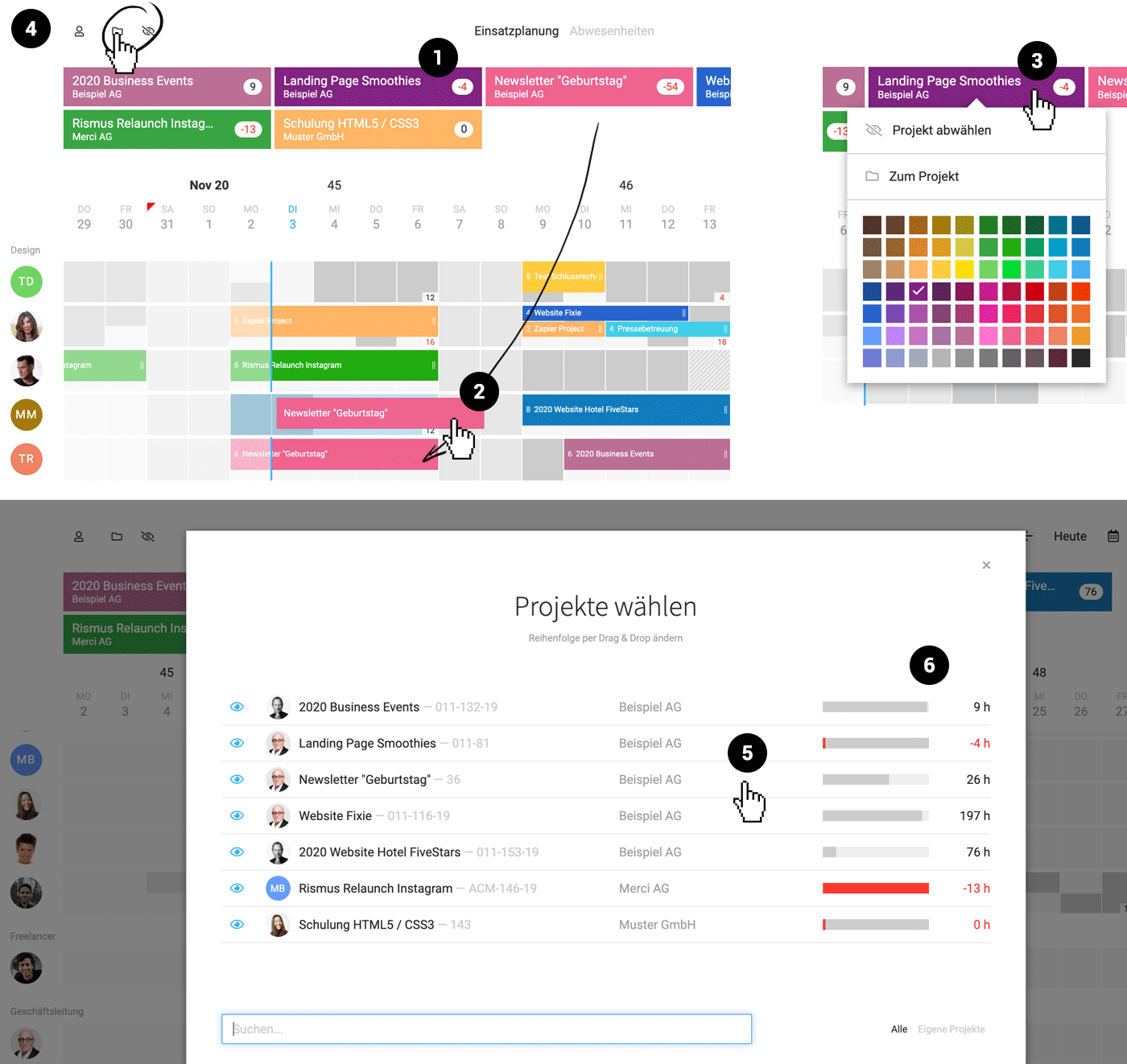
Alongside the project name and the client, the schedulable remaining hours are displayed (1).
The project popup shows how the remaining budget is already allocated (6).
Drag projects directly into planning
A project can be placed directly into the planning via drag & drop (2).
Reduce entire planning to a specific project
Clicking on a project tile reduces the planning to the people assigned to the project for time tracking. Other scheduled individuals are also displayed.
Link to the project
Right-clicking on the project tile (3) allows you to jump directly to the project.
Adjust project colour
In addition to the previous option of adjusting the project colour via right-click on an entry, this can now also be done directly in the project bar by right-clicking on the project tile (3).
Alongside the project name and the client, the schedulable remaining hours are displayed (1).
The project popup shows how the remaining budget is already allocated (6).
Drag projects directly into planning
A project can be placed directly into the planning via drag & drop (2).
Reduce entire planning to a specific project
Clicking on a project tile reduces the planning to the people assigned to the project for time tracking. Other scheduled individuals are also displayed.
Link to the project
Right-clicking on the project tile (3) allows you to jump directly to the project.
Adjust project colour
In addition to the previous option of adjusting the project colour via right-click on an entry, this can now also be done directly in the project bar by right-clicking on the project tile (3).
 (English image not yet available)
Display Control
Select/deselect project
After clicking on the project icon (4), a popup with the projects opens. Now select or deselect the favourite projects. The selected projects form a responsive project bar.
Quickly hide the entire bar
The project tiles can also be quickly hidden via the eye symbol (4).
Adjust the order of project tiles
The order of these tiles can be determined by yourself. To do this, move the projects in the popup in the desired order via drag & drop (5).
Deselect individual projects
Either click on the line in the popup or even faster: Right-click on the project tile (3).
After clicking on the project icon (4), a popup with the projects opens. Now select or deselect the favourite projects. The selected projects form a responsive project bar.
Quickly hide the entire bar
The project tiles can also be quickly hidden via the eye symbol (4).
Adjust the order of project tiles
The order of these tiles can be determined by yourself. To do this, move the projects in the popup in the desired order via drag & drop (5).
Deselect individual projects
Either click on the line in the popup or even faster: Right-click on the project tile (3).
Search or filter by own projects
In the project selection, you can search for projects and filter by your own projects on the right.
New projects
New projects where you are listed as the project manager are automatically added to the project favourites.
Miscellaneous
- The settings cog for showing/hiding teams is replaced by the person symbol.
- The team selection shows all individuals and provides visual orientation.
- The time selection has shifted to the right.








