Alter News-Artikel!
» Hier geht's zur aktuellen Online-Hilfe
Article from
Retainer & Hourly Quotas: The Monthly Budget.
Note: Due to updates, you can find the most current information in the online manual
The new monthly budget allows for more precise setup and control of retainers and hourly quotas. Here are the key features of the new functionality and the typical use case for retainers.
The new monthly budget allows for more precise setup and control of retainers and hourly quotas. Here are the key features of the new functionality and the typical use case for retainers.
Benefits of the Monthly Budget
- Monthly budget amount with duration
- Automatic invoicing plan (for fixed price = retainer)
- Monitor current budget progress in the project list
- Enhanced control in the project report
- Notification options for the monthly budget
- Revenue forecast
- Capacity planning: Plan the entire duration
- Labeling & filter options in the project list
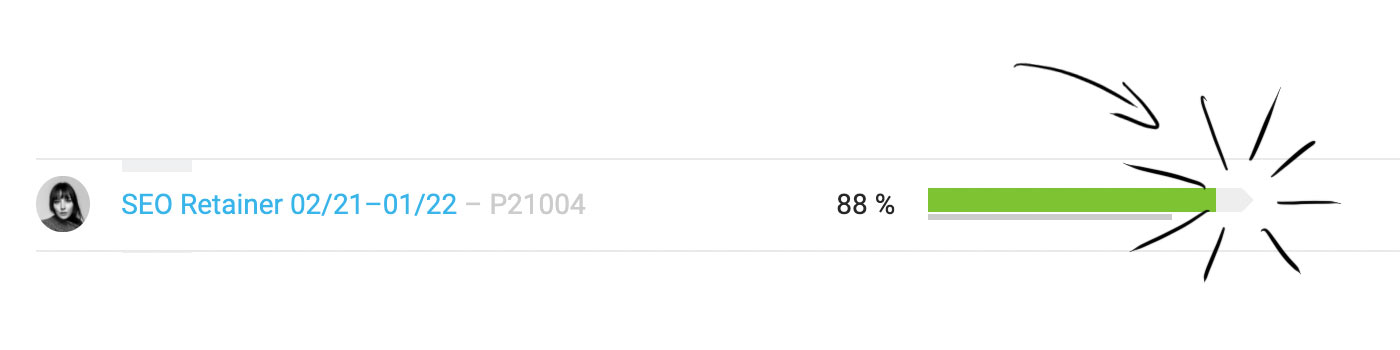
The monthly budget is designed to be used for retainers with flat-rate invoicing as well as for monthly hourly quotas billed based on effort. The typical identifier is the arrow shape of the budget bar, indicating the continuously accumulating budget:
 (English image not yet available)
(English image not yet available)Retainer
A retainer describes a regular monthly fee that the agency invoices to the client. This covers agreed regular services. External services – such as services purchased from suppliers, e.g., travel expenses, translations, etc. – can also be part of a retainer fee. The goal is to ensure monthly and overall budget control to secure a certain margin.
Create a Project
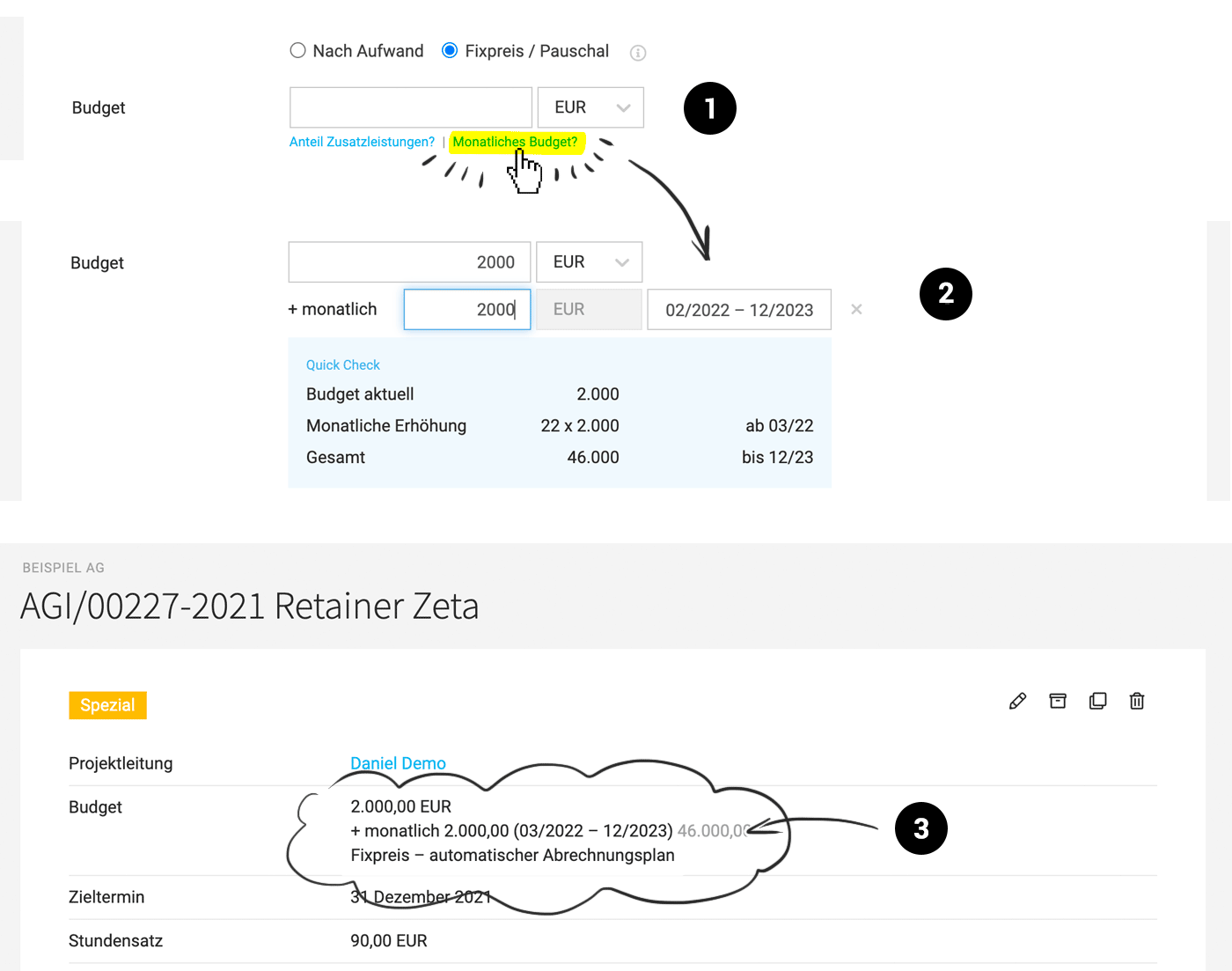
(1) When creating a new project, select "Fixed Price / Flat Rate" and "Monthly Budget?" in the form.
(2) Enter the monthly amount and duration.
(3) The cumulative budget, including the current month, is always displayed in the project details.
 (English image not yet available)
Create a Project
(1) When creating a new project, select "Fixed Price / Flat Rate" and "Monthly Budget?" in the form.
(2) Enter the monthly amount and duration.
(3) The cumulative budget, including the current month, is always displayed in the project details.
(English image not yet available)Invoicing
MOCO automatically creates a monthly invoicing option
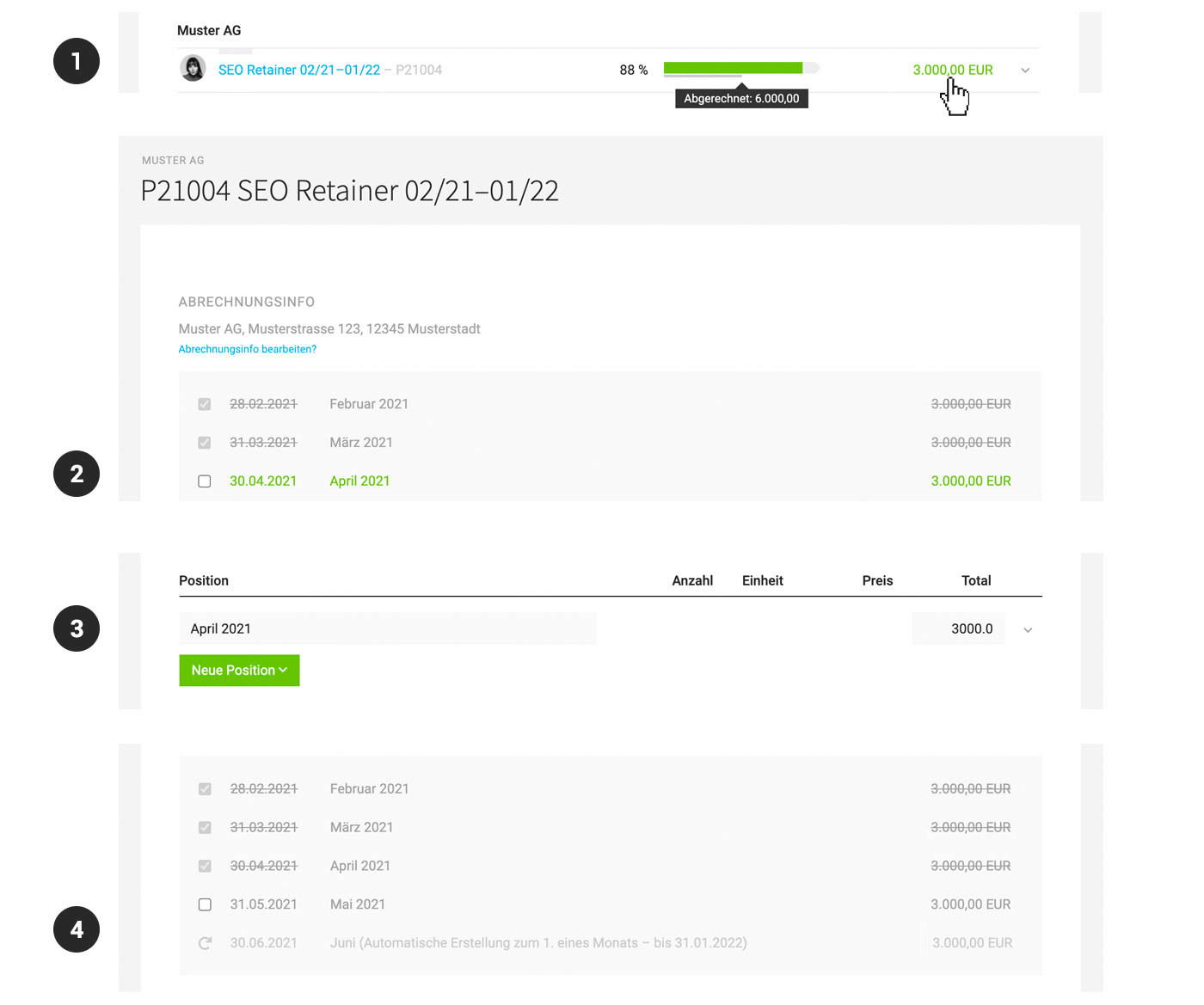
(1) At the end of the month, the monthly amount appears in the project list as a billable item.
(2) Clicking on it leads to the invoicing plan.
(3) The invoice can be created on this page – or through mass invoicing.
(4) On the 1st of each month, the item is automatically created in the invoicing plan – at the end of the month, it is offered for invoicing.
 (English image not yet available)
Control
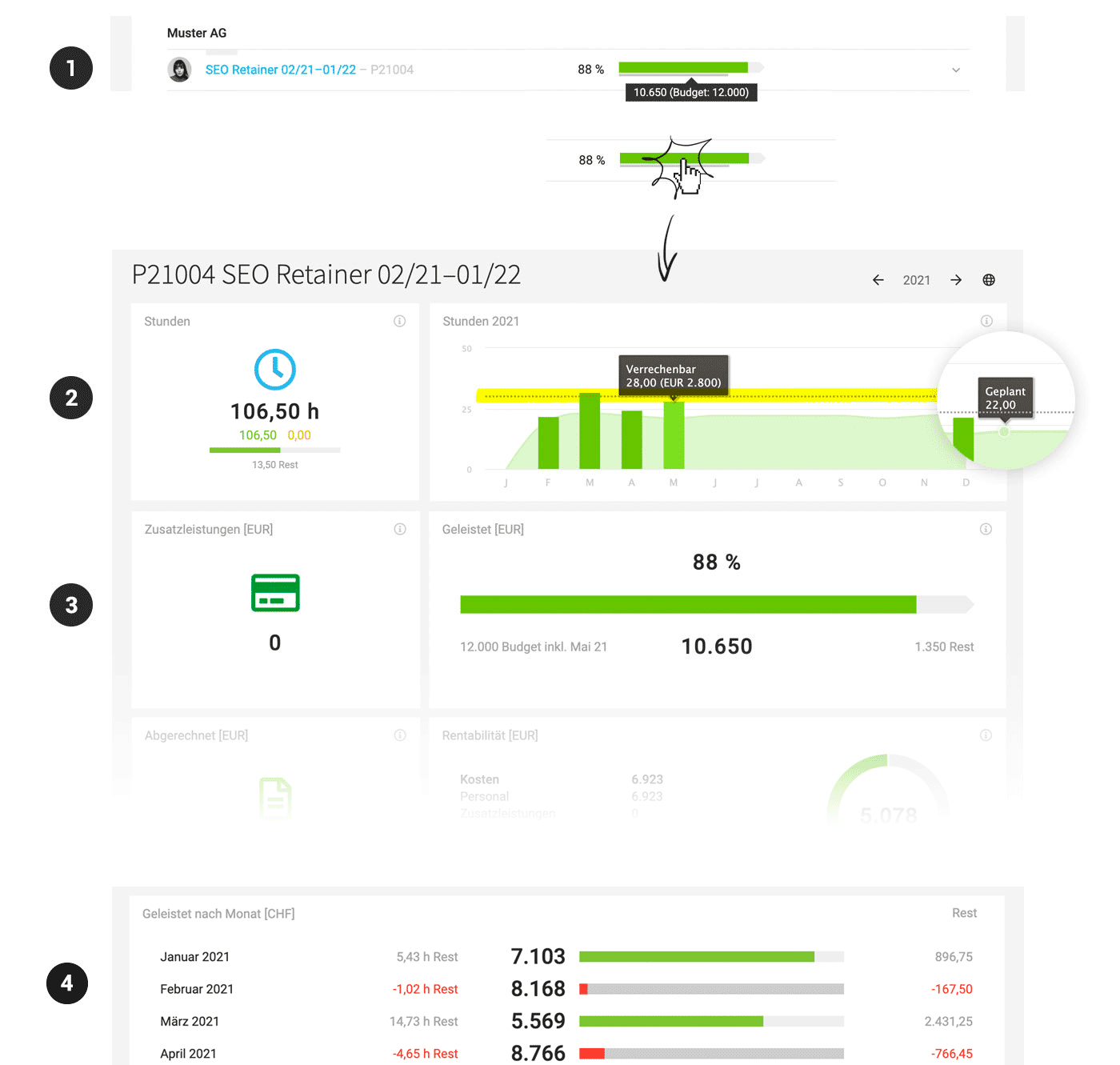
Projects with a monthly budget are identified by the arrow shape of the budget bar.
(1) Monitor the current budget in the project list.
Clicking on the budget info leads to the project report.
(2) Under "Hours," it shows how many hours you are currently over or under. A marker is above the monthly graphic (mouseover for hours + amount).
(3) Budget progress bar with cumulative budget, including the current month, performed and remaining.
(4) Breakdown of the months.
 (English image not yet available)
Forecast
The automatic invoicing plan also flows into the revenue forecast (Invoicing > Report).
Planning
The hours for the entire duration are displayed for planning.
Planned vs. performed hours are comparable in the project report (see above 2).
MOCO automatically creates a monthly invoicing option
(1) At the end of the month, the monthly amount appears in the project list as a billable item.
(2) Clicking on it leads to the invoicing plan.
(3) The invoice can be created on this page – or through mass invoicing.
(4) On the 1st of each month, the item is automatically created in the invoicing plan – at the end of the month, it is offered for invoicing.
(English image not yet available)Control
Projects with a monthly budget are identified by the arrow shape of the budget bar.
(1) Monitor the current budget in the project list.
Clicking on the budget info leads to the project report.
(2) Under "Hours," it shows how many hours you are currently over or under. A marker is above the monthly graphic (mouseover for hours + amount).
(3) Budget progress bar with cumulative budget, including the current month, performed and remaining.
(4) Breakdown of the months.
(English image not yet available)Forecast
The automatic invoicing plan also flows into the revenue forecast (Invoicing > Report).
Planning
The hours for the entire duration are displayed for planning.
Planned vs. performed hours are comparable in the project report (see above 2).
Hourly Quota
The hourly quota can be a support project – e.g., software maintenance. A certain number of hours (or an amount) is agreed with the client, which can be performed without requiring budget approval each time.
Differences from the Retainer
Differences from the Retainer
- Select "Based on Effort" in the project form for invoicing
- Create invoices as usual directly from the performed items.
General Notes
Switching to Monthly Budget
It is generally possible to switch already created projects to a monthly budget. However, a retainer project does not recognize sub-budgets. These are reset when saving. For additional services, you can instead work with groups (cost pools).
It is generally possible to switch already created projects to a monthly budget. However, a retainer project does not recognize sub-budgets. These are reset when saving. For additional services, you can instead work with groups (cost pools).








