Alter News-Artikel!
» Hier geht's zur aktuellen Online-Hilfe
Article from
Bulk Dispatch of Invoices.
Whether it's 5, 50, or 150 invoices – with the new bulk dispatch feature, you can send multiple created invoices in one go.
How Bulk Dispatch Works
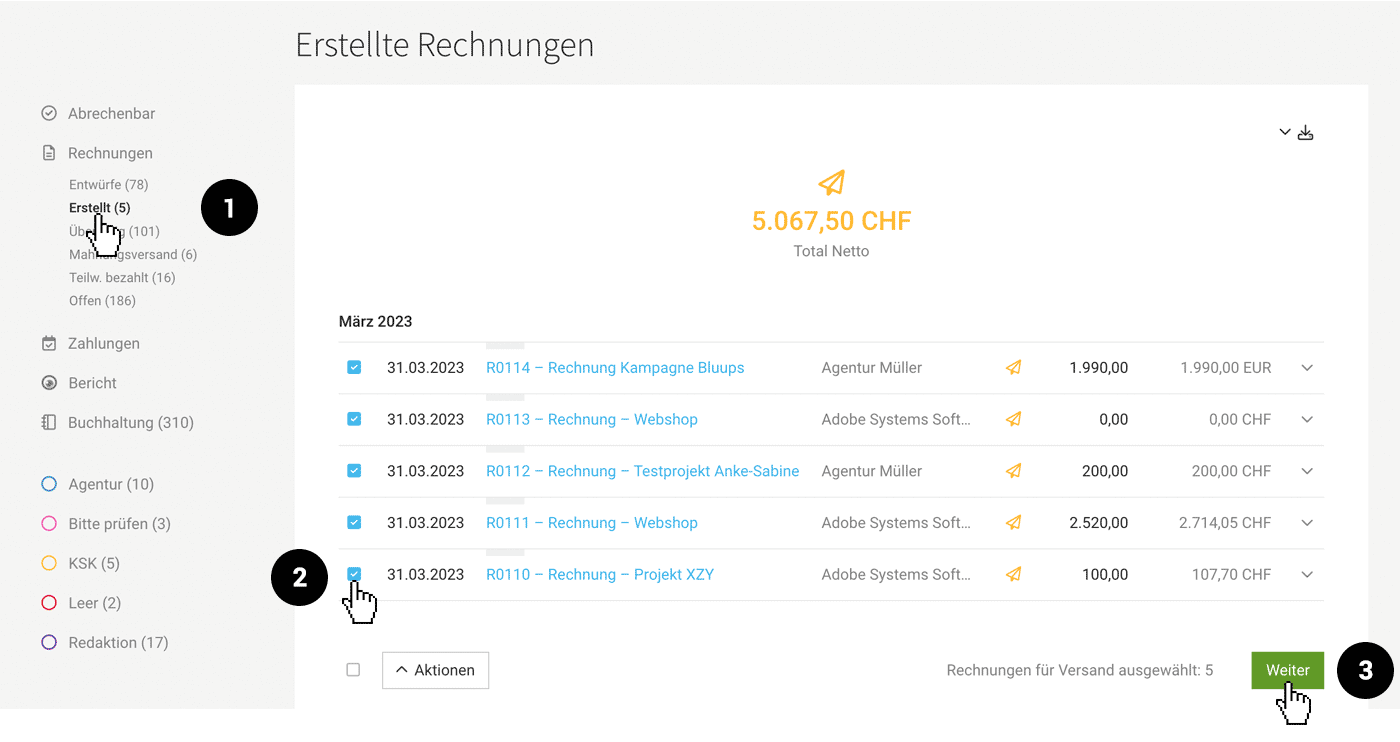
1. Go to "Invoicing" and select the Smart Filter "Created"
2. Choose all or individual invoices
3. Click "Next" at the bottom right
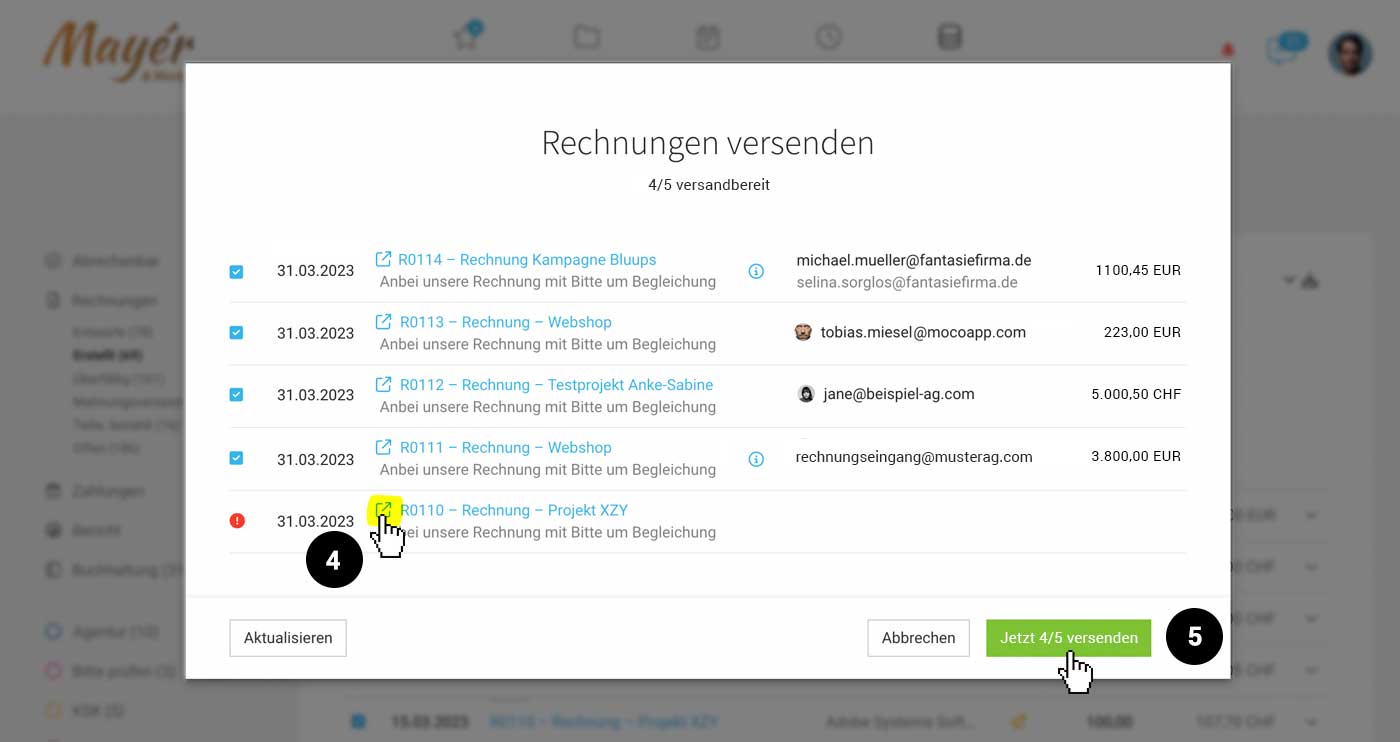
4. Check dispatch information
5. Confirm dispatch
 (English image not yet available)
 (English image not yet available)
2. Choose all or individual invoices
3. Click "Next" at the bottom right
4. Check dispatch information
5. Confirm dispatch
(English image not yet available)(English image not yet available)
Be Well Prepared
To ensure optimal preparation, check the following:
- Formulate the email standard text as neutrally as possible (Settings > Invoicing > Invoices)
- If using the "Salutation Line" variable: Adjust the standard salutation if necessary (Settings > Layout > Labels): When setting a contact in the project invoicing info or directly when creating the invoice, the salutation line specified for the contact is preferred.
An Invoice or Multiple Invoices Are Not Ready for Dispatch
The red "i" indicates that and why the selected invoice is not ready for dispatch. Usually, an email address is missing, without which the invoice cannot be sent. Through link (4), you can open the invoice again in a new window and add the email address to the client or project – then return to the dispatch window and select "Update" at the bottom left.








