Alter News-Artikel!
» Hier geht's zur aktuellen Online-Hilfe
Article from
New Approval Workflow for Incoming Invoices.
Instead of assigning responsibility and working with comments, you can now use the new MOCO approval workflow. This comprehensive functionality is discreetly integrated, ensuring that small accounts not requiring an approval process are not burdened.
Request Approval
You can initiate invoice approval either on the invoice detail page (1a) or from the list via the dropdown (1b).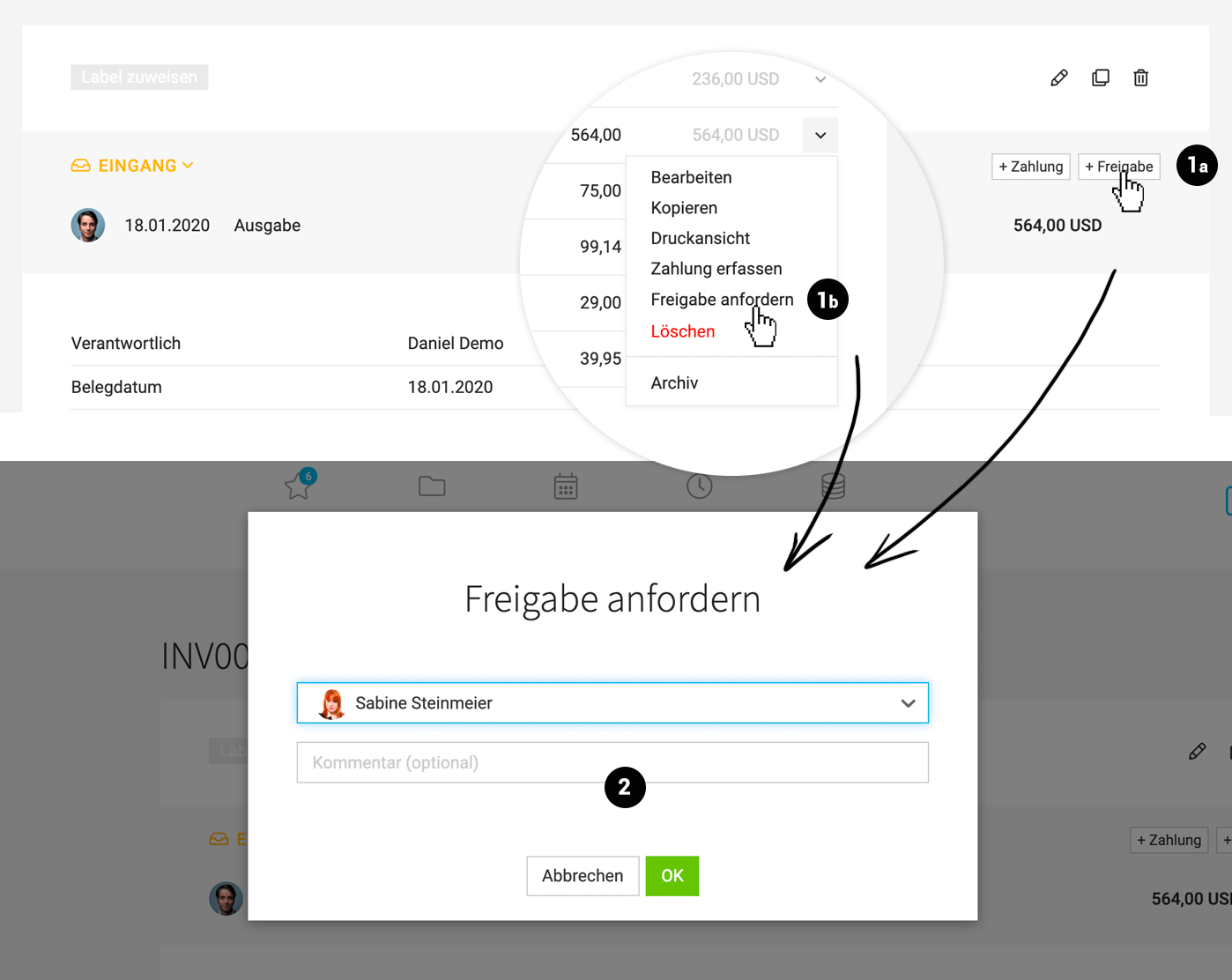 (English image not yet available)
(English image not yet available)→ All individuals with full or restricted access to Expenditures can be addressed.
→ The expenditure is marked in orange in the list.
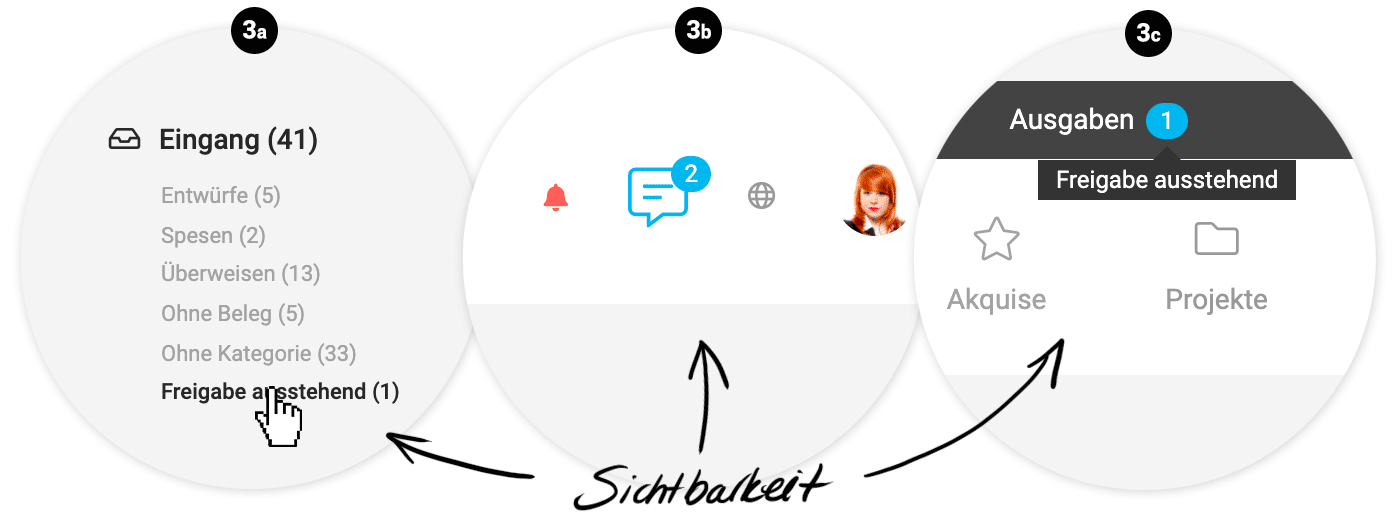
→ You can specifically filter for pending approvals using the new Smart Filter (3a).
→ With a comment (2), you can specify what the approval is about: e.g., checking the invoice or project assignment for further billing/cost tracking.
→ With a comment (2), you can specify what the approval is about: e.g., checking the invoice or project assignment for further billing/cost tracking.
The Addressed Person is Informed
The addressed person is notified of the newly requested approval in various ways:
 (English image not yet available)
→ They receive a message with the comment (notification options adjustable in the profile) and can directly access the expenditure through it (3b).
→ The number of pending approvals is also highlighted to a person via the "blue pill" (3c).
→ The Smart Filter can also be used to filter for them (3a).
(English image not yet available)→ They receive a message with the comment (notification options adjustable in the profile) and can directly access the expenditure through it (3b).
→ The number of pending approvals is also highlighted to a person via the "blue pill" (3c).
→ The Smart Filter can also be used to filter for them (3a).
Grant Approval
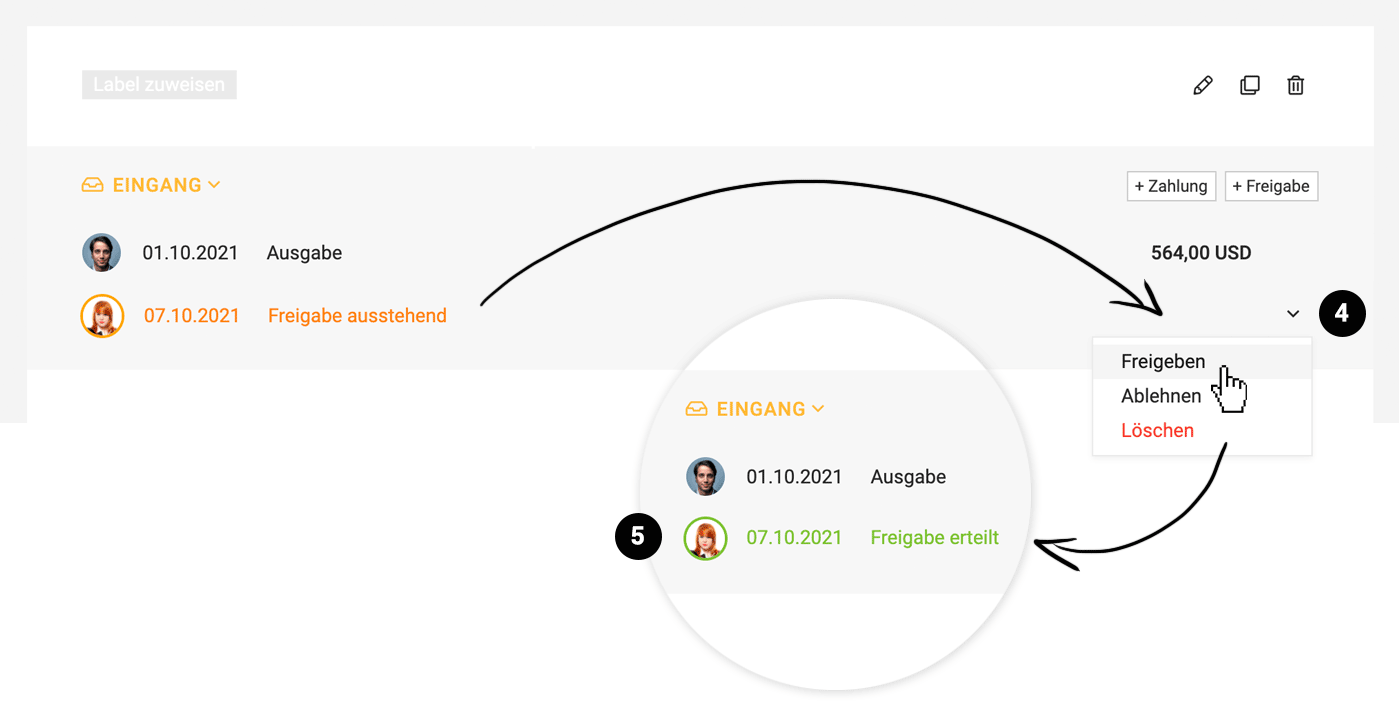
The addressed person reviews the invoice and can select "Approve" at the top of this detail view (4).
 (English image not yet available)
→ Only the addressed person can do this. The approval becomes active immediately and usually requires no further comments. If needed, a comment can be left below the invoice, or another person can be notified.
→ The expenditure is marked with a green circle in the list (5).
→ The initiator is notified of the approval.
Reject Approval / Wrong Contact Person / Delete Approval Request
→ The addressed person can choose "Reject" (4) and provide a reason/comment. The initiator is notified accordingly and can request a new approval from another person.
→ If the addressed person wishes to indicate they are the wrong contact, they can do so below via a notification.
→ The request can be deleted by the initiator at any time – and a new approval can be requested if needed.
The steps are recorded in the history below the invoice by MOCO.
(English image not yet available)→ Only the addressed person can do this. The approval becomes active immediately and usually requires no further comments. If needed, a comment can be left below the invoice, or another person can be notified.
→ The expenditure is marked with a green circle in the list (5).
→ The initiator is notified of the approval.
Reject Approval / Wrong Contact Person / Delete Approval Request
→ The addressed person can choose "Reject" (4) and provide a reason/comment. The initiator is notified accordingly and can request a new approval from another person.
→ If the addressed person wishes to indicate they are the wrong contact, they can do so below via a notification.
→ The request can be deleted by the initiator at any time – and a new approval can be requested if needed.
The steps are recorded in the history below the invoice by MOCO.








