Article from
Leads: Time Tracking.
Select an internal acquisition project and log time on leads. If necessary, you can automatically transfer the efforts to the newly created project.
Setting Up Time Tracking on Leads
Create an Internal Project
If you don't have an internal project for sales yet, create a new internal project (choose your own company as the client!) and name it something like "Acquisition." Add a service called "Leads" or similar and include all relevant personnel for time tracking.
Select in Settings
Select this service "Leads" in the settings.
MOCO will display a note on the service in the project, and the service cannot be locked or deleted.
 (English image not yet available)
If you don't have an internal project for sales yet, create a new internal project (choose your own company as the client!) and name it something like "Acquisition." Add a service called "Leads" or similar and include all relevant personnel for time tracking.
Select in Settings
Select this service "Leads" in the settings.
MOCO will display a note on the service in the project, and the service cannot be locked or deleted.
(English image not yet available)Logging Time on Leads
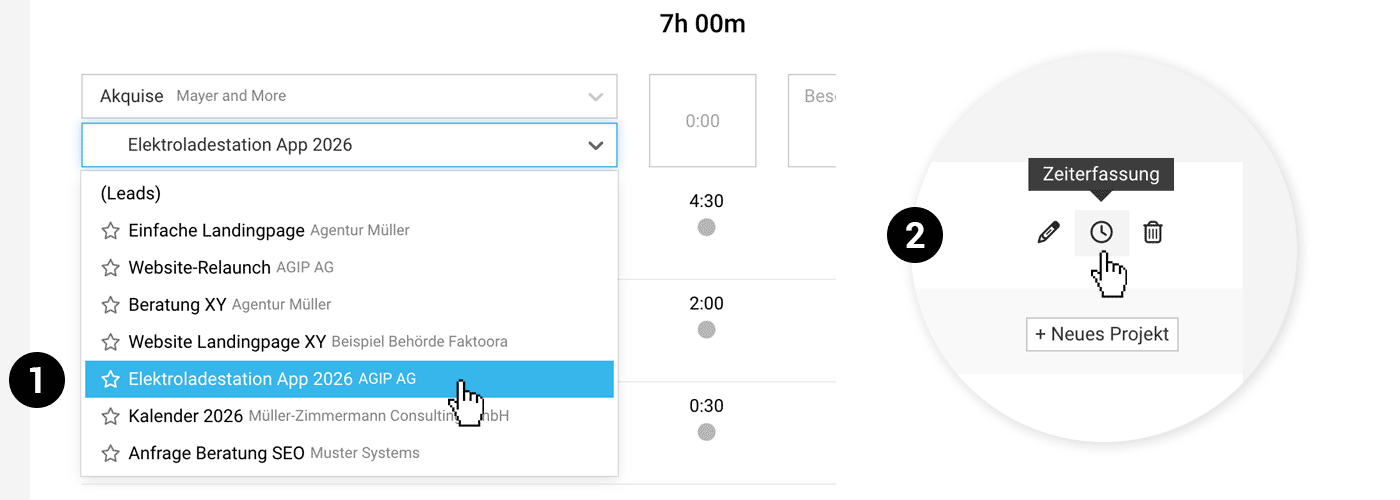
In the time tracking section, all active leads are listed under the service in the selected project (1). Choose a lead and log your time as usual.
Tip: In the lead, you can also click directly on time tracking in the top right corner (2). The lead will then be pre-selected for time tracking.
 (English image not yet available)
The total hours logged per lead are displayed on the lead detail page. In the project, you can filter by leads using an additional filter option.
Tip: In the lead, you can also click directly on time tracking in the top right corner (2). The lead will then be pre-selected for time tracking.
(English image not yet available)The total hours logged per lead are displayed on the lead detail page. In the project, you can filter by leads using an additional filter option.
Automatic Transfer of Hours to the Project
If you create a new project from a lead, MOCO offers you the option via a checkbox to transfer the logged hours to the project. They will be reallocated to an automatically created service "Acquisition" with an hourly rate of 0.00.
 (English image not yet available)
Ensure that the hours in the project are set to "non-billable" and adjust to "billable" and the hourly rate if necessary.
As usual, you can alternatively manually reallocate logged hours. They will be listed in the timesheet of the selected acquisition project.
(English image not yet available)Ensure that the hours in the project are set to "non-billable" and adjust to "billable" and the hourly rate if necessary.
As usual, you can alternatively manually reallocate logged hours. They will be listed in the timesheet of the selected acquisition project.








