Article from
Switching to MOCO Made Easy.
Thinking about changing your ERP software? For many businesses, this sounds like long nights, team frustration, and complicated data imports. But it doesn't have to be that way. With the right approach, the transition becomes a real opportunity – for greater efficiency, clarity, and a motivated team. Here are four tips to help you master your switch to MOCO stress-free – step by step.
 (English image not yet available)
1. Open Communication – Get Everyone on Board
Switching tools is not a side project. The most important success factor: Help your team understand why you want to introduce MOCO.
Talk early and transparently with everyone about what bothered you about the old solution – for example:
👉 Lack of overview of budgets and projects
👉 Disruptions between time tracking and invoicing
👉 Complicated operation that costs time
Explain what MOCO will do better in the future:
👉 A single platform for everything important
👉 Simple, modern operation
👉 Faster processes and fewer errors
💡 Tip:
Make it concrete: Show screenshots from MOCO or conduct a short live demo. This turns skepticism into curiosity.
Make it concrete: Show screenshots from MOCO or conduct a short live demo. This turns skepticism into curiosity.
2. Clean Up Instead of Carrying Over Old Burdens
Before you go live with MOCO, it's worth setting up a clean foundation. Switching tools is the perfect opportunity to streamline outdated structures.
Together with a core team, you should consider:
👉 Which client and project data do you need for the new MOCO setup?
👉 Which historical invoices need to be re-entered in MOCO – and which can you archive?
👉 Do you really need all the old labels and categories, or can you simplify them?
Best Practice – Opus Marketing
The team at Opus Marketing used the switch to MOCO to fundamentally clean up. They consistently reduced old data, introduced a new numbering concept, and created a clear service catalogue. This not only simplified the start but also significantly reduced the error rate in proposals.
The team at Opus Marketing used the switch to MOCO to fundamentally clean up. They consistently reduced old data, introduced a new numbering concept, and created a clear service catalogue. This not only simplified the start but also significantly reduced the error rate in proposals.
MOCO supports you with:
✅ Custom import options (Excel templates for clients, suppliers, and contacts)
✅ Tips for pragmatic data entry (e.g., for projects or revenues)
✅ An API for individual data migration
✅ A data import service if needed
✅ An API for individual data migration
✅ A data import service if needed
💡 Tip for custom import options:
First import only a sample, carefully check the data, and then import all entries. This way, you avoid duplicate or erroneous records.
First import only a sample, carefully check the data, and then import all entries. This way, you avoid duplicate or erroneous records.
3. Get to Know MOCO First, Then Set It Up Properly
Many start with too many parallel goals: trying out, importing data, setting up processes. This quickly leads to chaos – because MOCO works with real data that you can't just completely reset.
Therefore, our tip: Clearly separate the test phase from the productive start.
Phase 1 – Test and Evaluate MOCO
If you want to try MOCO first, create a non-binding account with which you can test your requirements and experience the software for 30 days. Here you can:
👉 Get to know menus and functions
👉 Set up initial test projects
👉 Create proposals and invoices
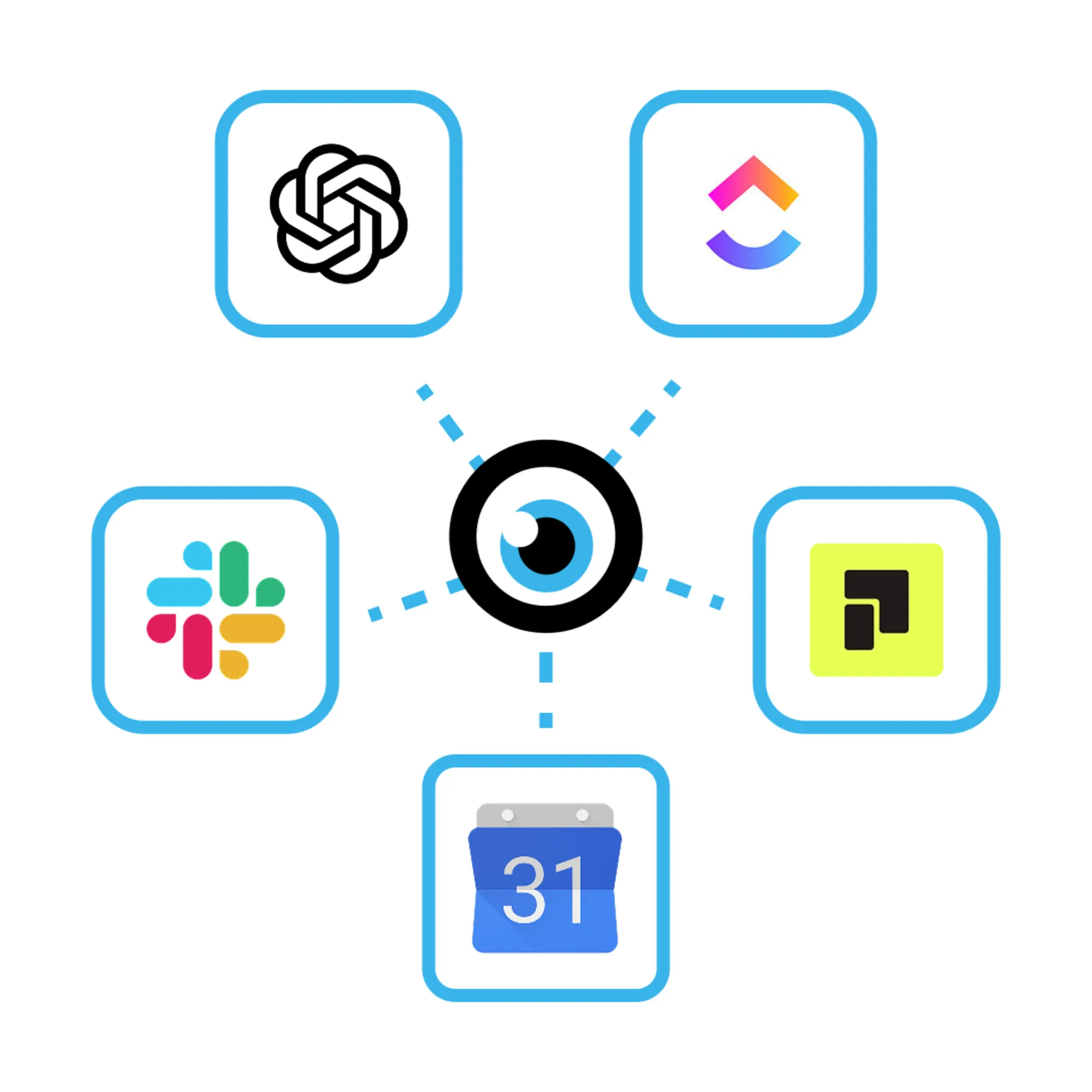
👉 Connect existing tools
Important:
In this phase, you don't need to import real data or finalize layouts. It's just about getting a feel for the software and checking how MOCO fits your processes. Therefore, it's already sensible in this step to connect tools for our integration options that you want to continue working with in the future.
In this phase, you don't need to import real data or finalize layouts. It's just about getting a feel for the software and checking how MOCO fits your processes. Therefore, it's already sensible in this step to connect tools for our integration options that you want to continue working with in the future.
If you experiment "wildly" during the test, you can then specifically delete individual test data or alternatively do a complete reset – that is, create a new account for real use.
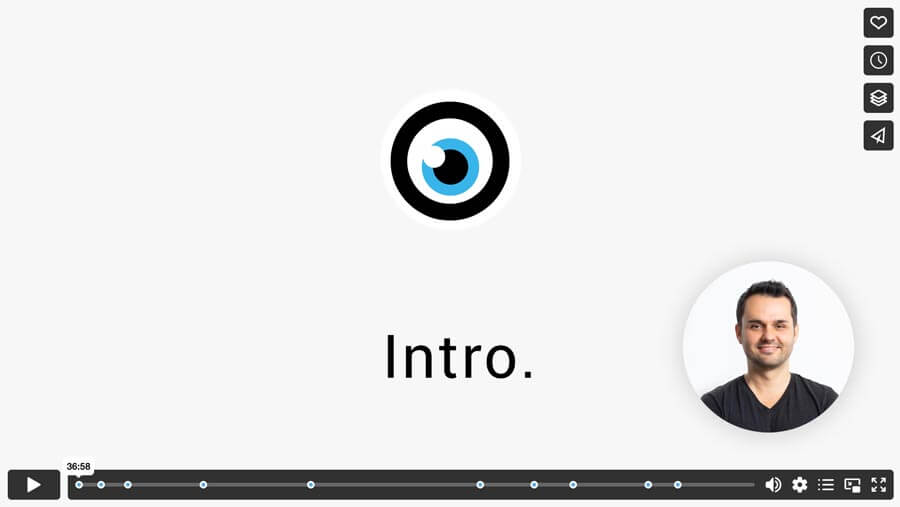
Tip: Start with the Intro Video. In 37 minutes, you'll get a solid understanding of the software.
 (English image not yet available)
Best Practice – Opus Marketing
Opus Marketing first got to know MOCO with a small team and then set up the real account properly. Only when they were convinced that MOCO was a good fit did they import all relevant data and start live operations.
(English image not yet available)Best Practice – Opus Marketing
Opus Marketing first got to know MOCO with a small team and then set up the real account properly. Only when they were convinced that MOCO was a good fit did they import all relevant data and start live operations.
Phase 2 – Set Up Productively and Start
Once you've decided on MOCO, it's time to actually set up your account.
This is where you lay the foundation for your real operations:
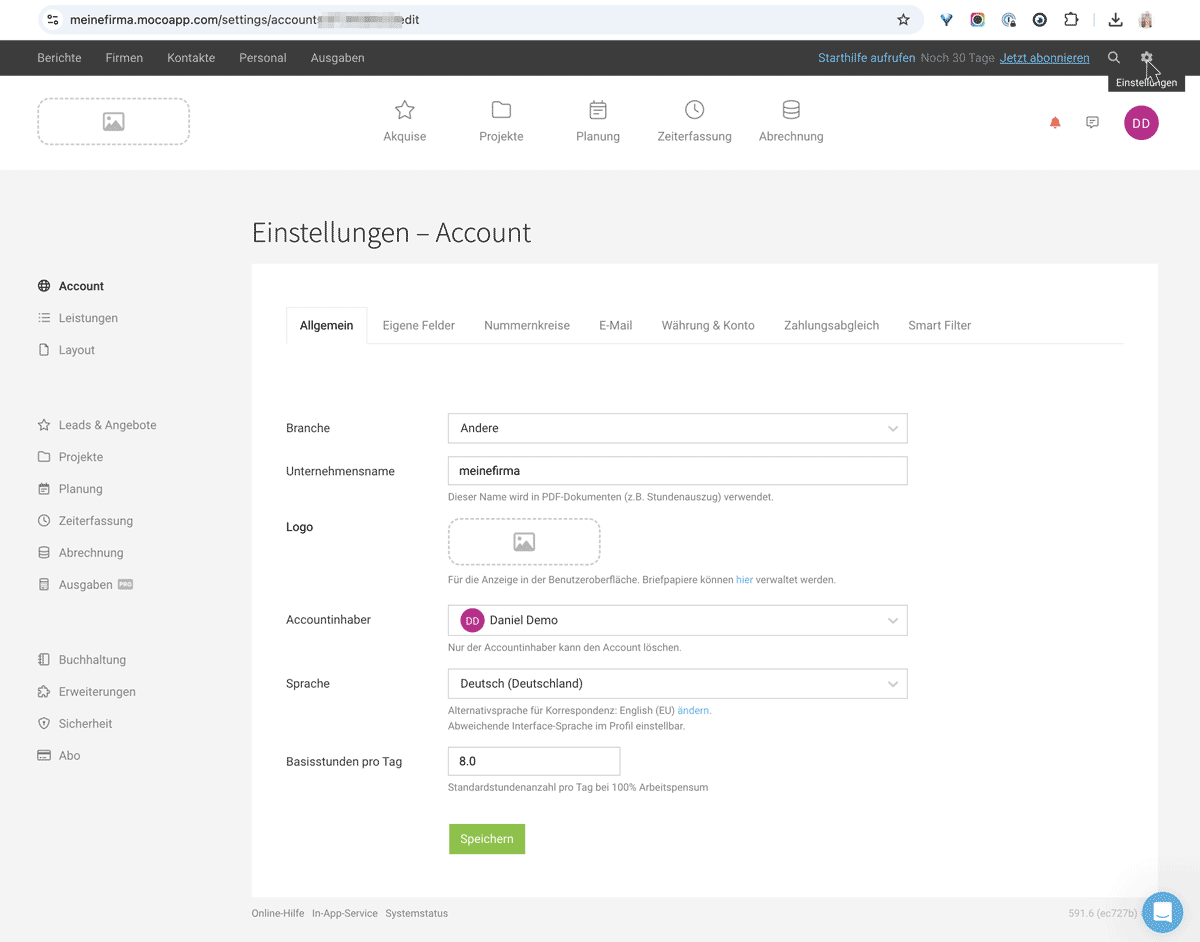
Make account settings – for example, at the start:
- Set layout settings, upload letterhead & fonts
- Define numbering sequences
- Define custom fields
- Adjust standard texts
 (English image not yet available)
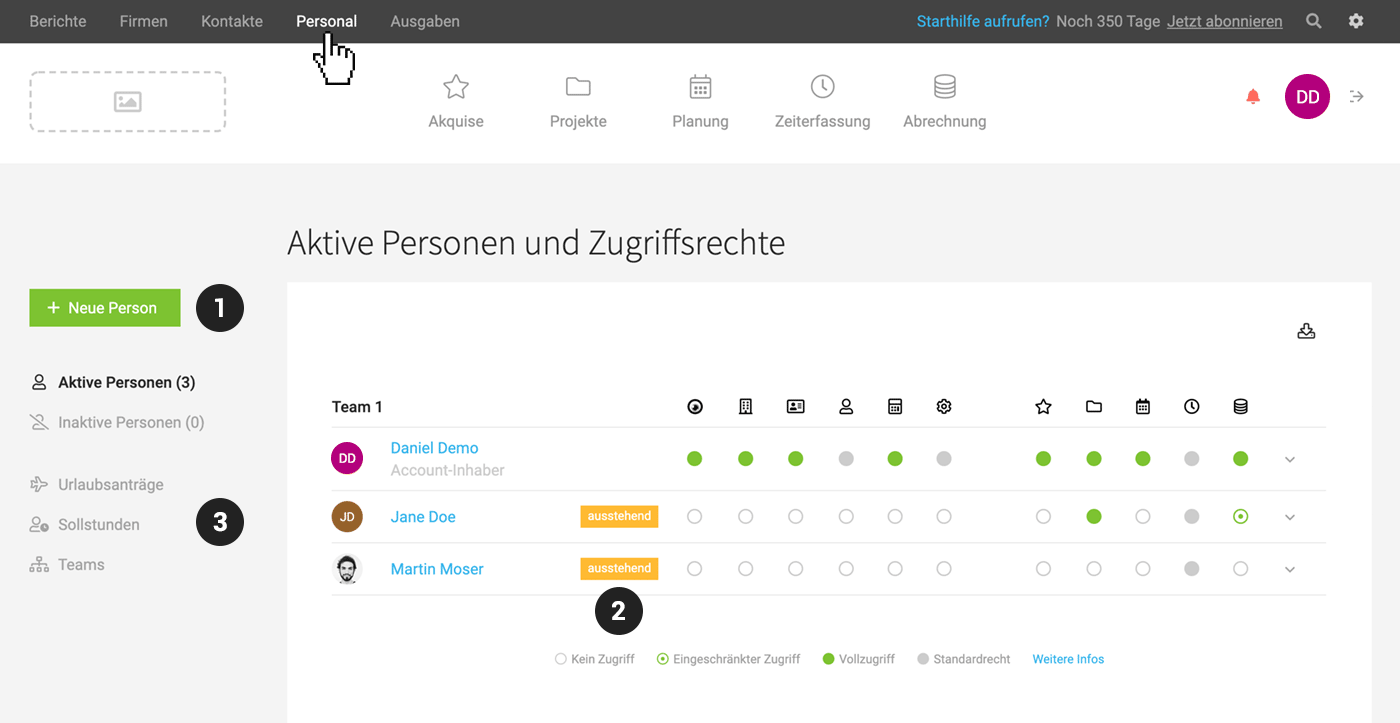
Add users:
- Invite all employees
- Assign access rights
- Record target hours and holiday balances
 (English image not yet available)
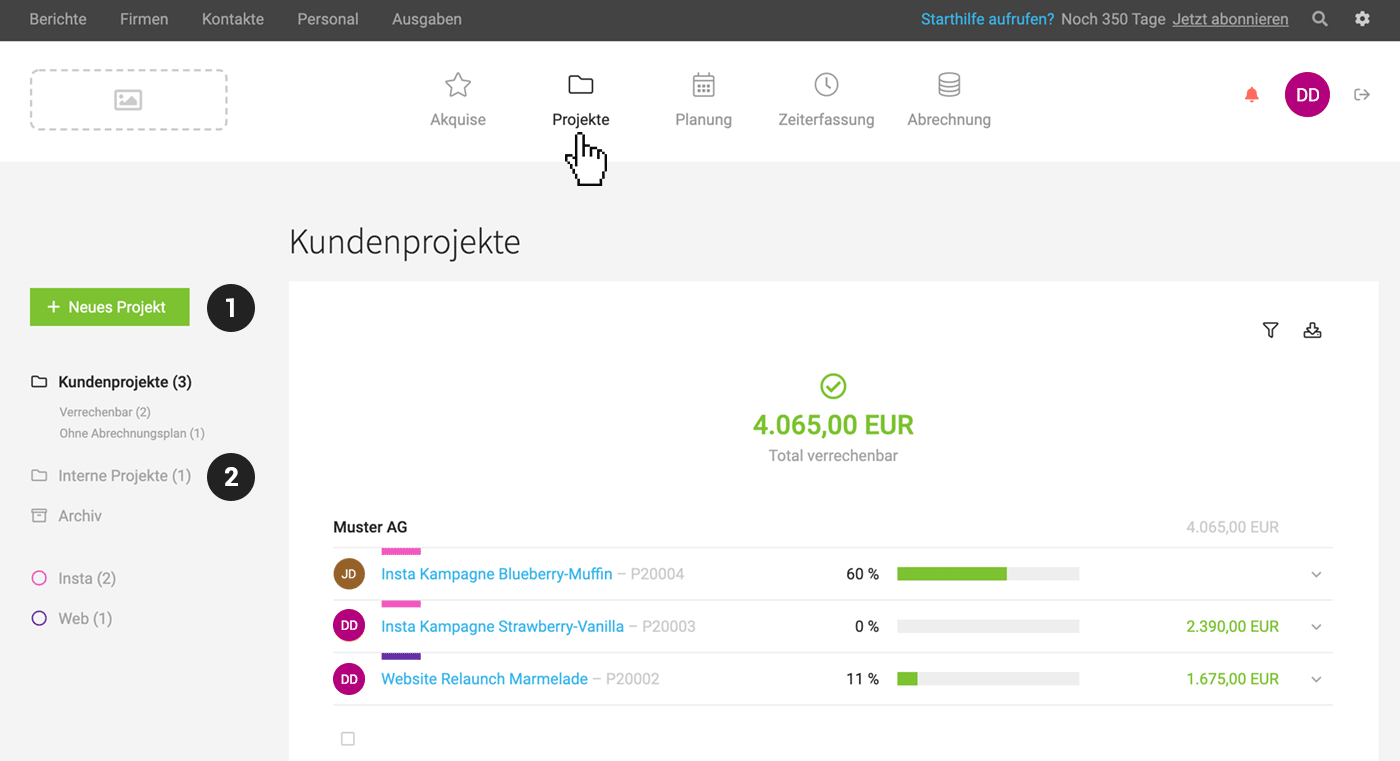
Record clients & projects:
- Import clients or add them manually
- Record ongoing projects
- If necessary, re-enter services or invoices
 (English image not yet available)
Integrations
Phase 3 – Expand Usage
Many users don't use MOCO to its full extent from the start but gradually work their way into the different areas.
Here's what you can tackle after the first few weeks:
- Use leads and proposals
- Conduct capacity planning
- Record and process incoming invoices/personal expenses
- Check liquidity planning
💡 Tip:
Don't worry if you haven't set everything up perfectly right away. MOCO is flexible – you can adjust at any time.
Don't worry if you haven't set everything up perfectly right away. MOCO is flexible – you can adjust at any time.
4. Utilize Support & Services
MOCO is designed to be intuitive, so you can quickly start independently. However, you don't have to figure everything out on your own.
Take advantage of the options:
✅ In-App Service: Direct line to the MOCO team
✅ Video Tutorials: Tutorials for key areas
✅ Data Import Service: Support for individual data transfers
✅ Video Tutorials: Tutorials for key areas
✅ Data Import Service: Support for individual data transfers
💡 Tip:
If you have individual questions before starting or want to set up MOCO together with an expert, you can book a consultation session at any time – so you start safely and well-prepared.
If you have individual questions before starting or want to set up MOCO together with an expert, you can book a consultation session at any time – so you start safely and well-prepared.
Conclusion: Tool Change as an Opportunity – It Works with MOCO
A software change doesn't have to be a mammoth project. With a clear plan, realistic expectations, and MOCO as a partner, the transition becomes a success factor.
MOCO is made for this: intuitive, quickly set up, flexibly expandable – without unnecessary baggage.








