Alter News-Artikel!
» Hier geht's zur aktuellen Online-Hilfe
Article from
Invoicing: Manage Timeframe Filtering and Non-Billable Items.
Filter by Timeframe When Invoicing
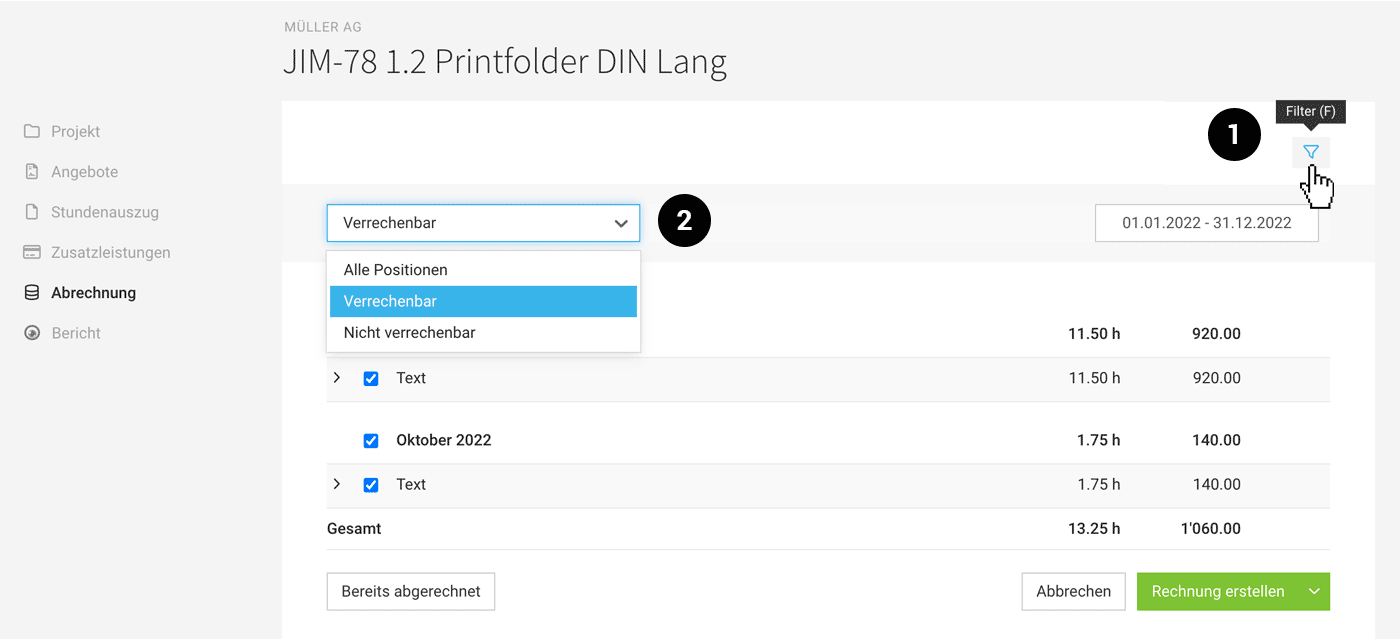
When invoicing (in the project under "Invoicing" > "Billable Items" > "Show Items"), all billable items are displayed by default. You can now filter by timeframe as well. Since this is not a frequent action and the view should remain as streamlined as before, the new filter is hidden under the icon at the top right (1). It can be accessed by clicking or using the keyboard shortcut "F" like other filters.
 (English image not yet available)
Display/Utilise Non-Billable Items When Invoicing
You can now also use non-billable items (hours or additional services) directly during invoicing. To do this, filter for all items or non-billable ones (2) and then:
When invoicing (in the project under "Invoicing" > "Billable Items" > "Show Items"), all billable items are displayed by default. You can now filter by timeframe as well. Since this is not a frequent action and the view should remain as streamlined as before, the new filter is hidden under the icon at the top right (1). It can be accessed by clicking or using the keyboard shortcut "F" like other filters.
(English image not yet available)Display/Utilise Non-Billable Items When Invoicing
You can now also use non-billable items (hours or additional services) directly during invoicing. To do this, filter for all items or non-billable ones (2) and then:
- Display non-billable items when creating an invoice.
- Change non-billable items to "Billable".
- Mark non-billable items as "Already Invoiced".
- Include non-billable items on the invoice for informational purposes only.
During invoicing, the hours are also included in the timesheet.
Styling Non-Billable Items in the Invoice PDF
Contact us if you want the items displayed in a different colour or/and without brackets. This can be adjusted by us at no cost and also applies to optional items in the proposal.
Further Links
» Invoicing by Effort
» Keyboard Shortcuts
Contact us if you want the items displayed in a different colour or/and without brackets. This can be adjusted by us at no cost and also applies to optional items in the proposal.
Further Links
» Invoicing by Effort
» Keyboard Shortcuts








