Alter News-Artikel!
» Hier geht's zur aktuellen Online-Hilfe
Article from
Partial Invoices from Proposals: Quickly Created & Easily Traceable.
Previously, invoicing individual items required selecting the proposal multiple times and then removing the unnecessary items. MOCO has significantly simplified this invoicing method. Now, you can create partial invoices not only faster but also maintain a clear overview of how much of the proposal is still outstanding and which invoices have been generated from the proposal.
Faster Creation of Partial Invoices
Select Proposal
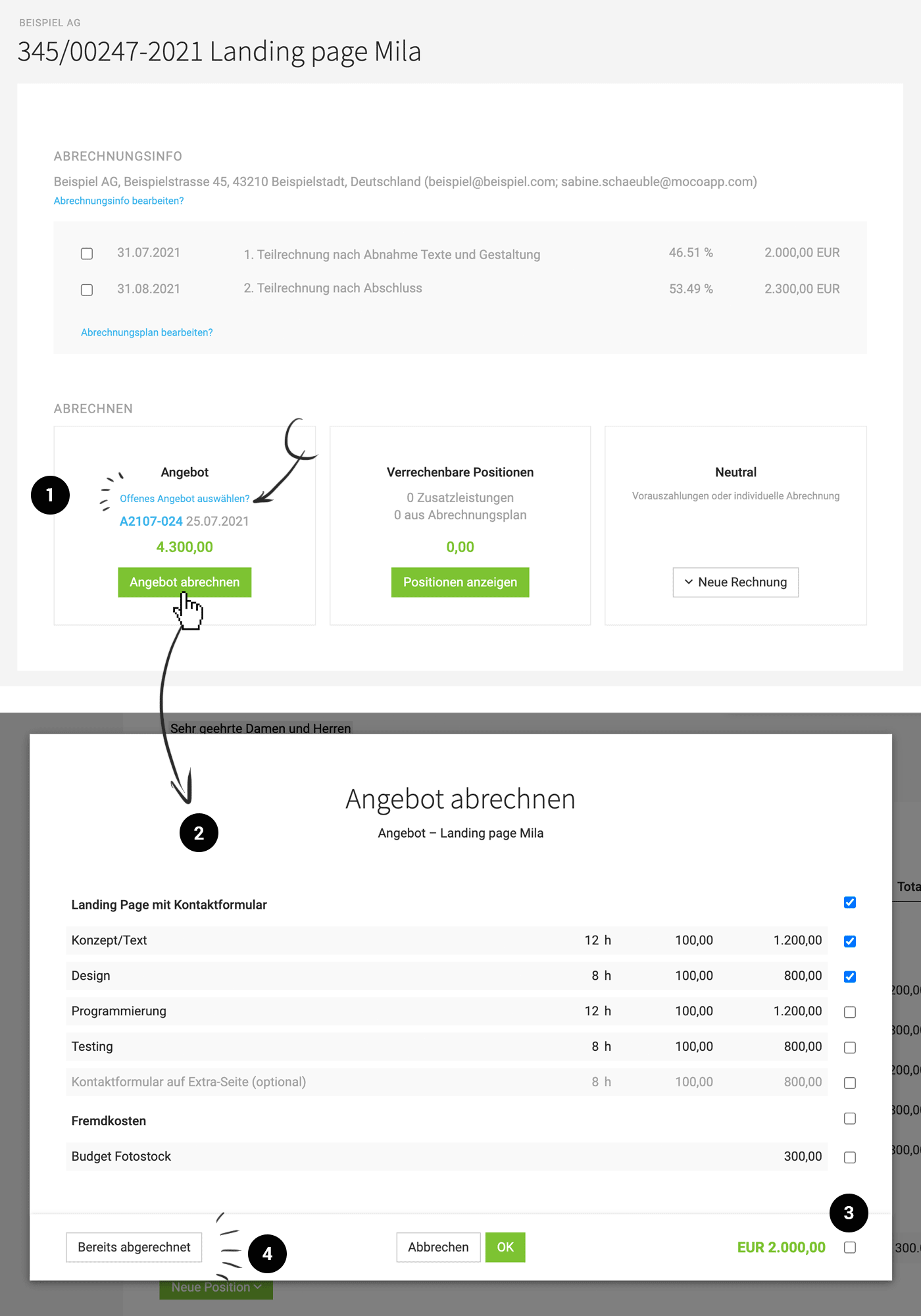
Assigned, open proposals are available for selection in the invoicing box. The selection is now offered via the blue link (1) instead of the dropdown arrow (top right), as this was occasionally overlooked.
 (English image not yet available)
Select Items in Modal
When invoicing the proposal (2), you can invoice the entire proposal or alternatively only selected items if a partial invoice is desired (3). Optional items are not selected by default. If only individual items are invoiced, the proposal automatically receives the status "Partially Invoiced".
Through "Already Invoiced" (4), the proposal can also be directly set to "Invoiced" if the invoice has already been processed elsewhere.
Assigned, open proposals are available for selection in the invoicing box. The selection is now offered via the blue link (1) instead of the dropdown arrow (top right), as this was occasionally overlooked.
(English image not yet available)Select Items in Modal
When invoicing the proposal (2), you can invoice the entire proposal or alternatively only selected items if a partial invoice is desired (3). Optional items are not selected by default. If only individual items are invoiced, the proposal automatically receives the status "Partially Invoiced".
Through "Already Invoiced" (4), the proposal can also be directly set to "Invoiced" if the invoice has already been processed elsewhere.
Also in the Client
All open proposals for invoicing are also offered under "Invoicing" in the client.
Optimal Traceability
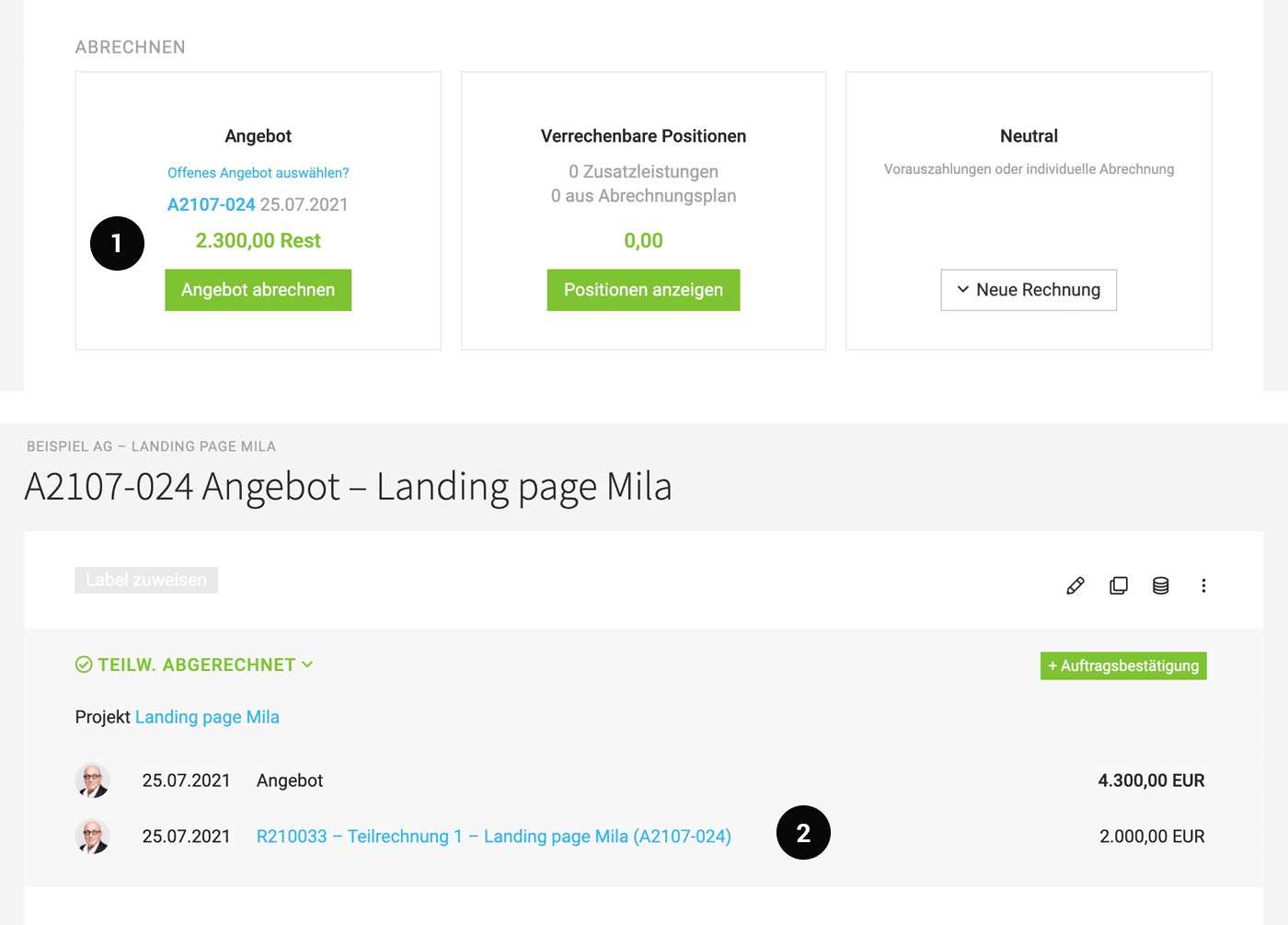
The remaining amount is directly displayed in the invoicing box (1). Through the blue link "Select Proposals", the created invoices can also be reviewed again. On the proposal page, the created partial invoices are listed and linked (2). Similarly, the invoiced amounts are directly listed with the proposal in the central proposal list.
 (English image not yet available)
Flexibility in Proposal/Invoicing Management
With the latest developments, the proposals are now independent and can be easily moved from project to project to invoice different parts in different projects. Invoices created from proposals can also be moved to other projects at any time.
If you want to invoice a proposal again: reset the status of the proposal or use the offered link in the modal to display the items again. To create an identical invoice to the previous one, a copy of the previous invoice remains the first choice.
If you want to invoice a proposal again: reset the status of the proposal or use the offered link in the modal to display the items again. To create an identical invoice to the previous one, a copy of the previous invoice remains the first choice.
Excursus
Partial Invoice versus Advance and Final Invoice
A partial invoice should not be confused with an advance invoice. Partial invoices relate to services already rendered and stand alone. An advance invoice involves invoicing a percentage or fixed amount in advance. Advance invoices always require a final invoice that deducts the corresponding advance invoices. Partial invoices do not require such a final invoice.
A partial invoice should not be confused with an advance invoice. Partial invoices relate to services already rendered and stand alone. An advance invoice involves invoicing a percentage or fixed amount in advance. Advance invoices always require a final invoice that deducts the corresponding advance invoices. Partial invoices do not require such a final invoice.








