Alter News-Artikel!
» Hier geht's zur aktuellen Online-Hilfe
Article from
Restricted Personnel Access: View and Manage Only Your Own Team.
If a team leader should only manage their own employees, they can be given restricted access to "Personnel." Here's how it works and what the team leader can do:
Restricted Access
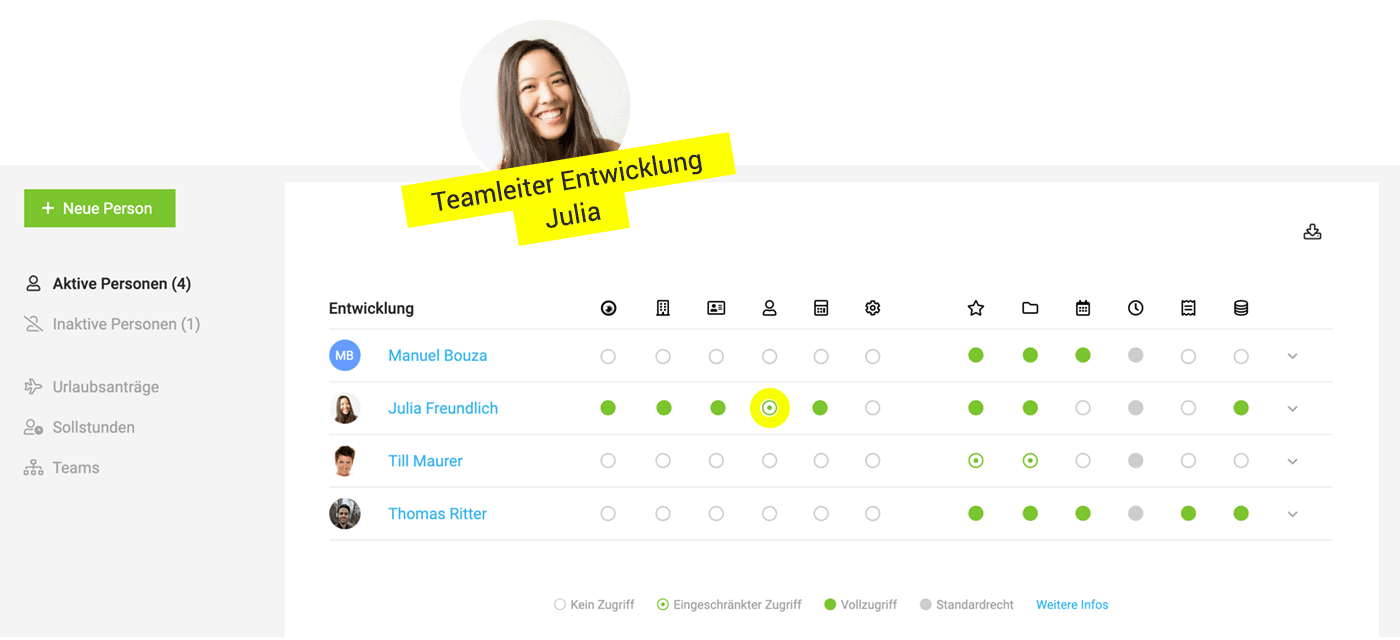
Under "Personnel," access rights to individual functional areas are managed. Clicking once shows a circle with a dot (= Restricted Access), clicking twice shows a full dot (= Full Access).
In the example, team leader Julia has restricted access rights to "Personnel" (highlighted in yellow).
 (English image not yet available)
In the example, team leader Julia has restricted access rights to "Personnel" (highlighted in yellow).
(English image not yet available)Being able to view and manage your own team means:
→ Register new members for your own team
→ Switch to team members' profiles (» User Switch)
→ Manage your own team members
→ Switch to team members' profiles (» User Switch)
→ Manage your own team members
- Deactivate/Activate
- Assign projects for time tracking collectively
- Review & export timesheets
- Review & export working hours
- Oversee & export Target-Actual
- Define target hours (weekly model with duration and target hours of employment)
- Manage leave accounts
- Approve or delete leave requests
- Retrieve personnel report
- Retrieve team report
Limitations
- Access rights cannot be changed – full access to "Personnel" is required for that.








