
-------

MOCO + Calendar (Time Tracking)
EN:
Each user can display their calendar appointments in their MOCO time tracking.
Benefits of Integration
By displaying your appointments in MOCO, you can better manage your day and directly use the appointments for time tracking.
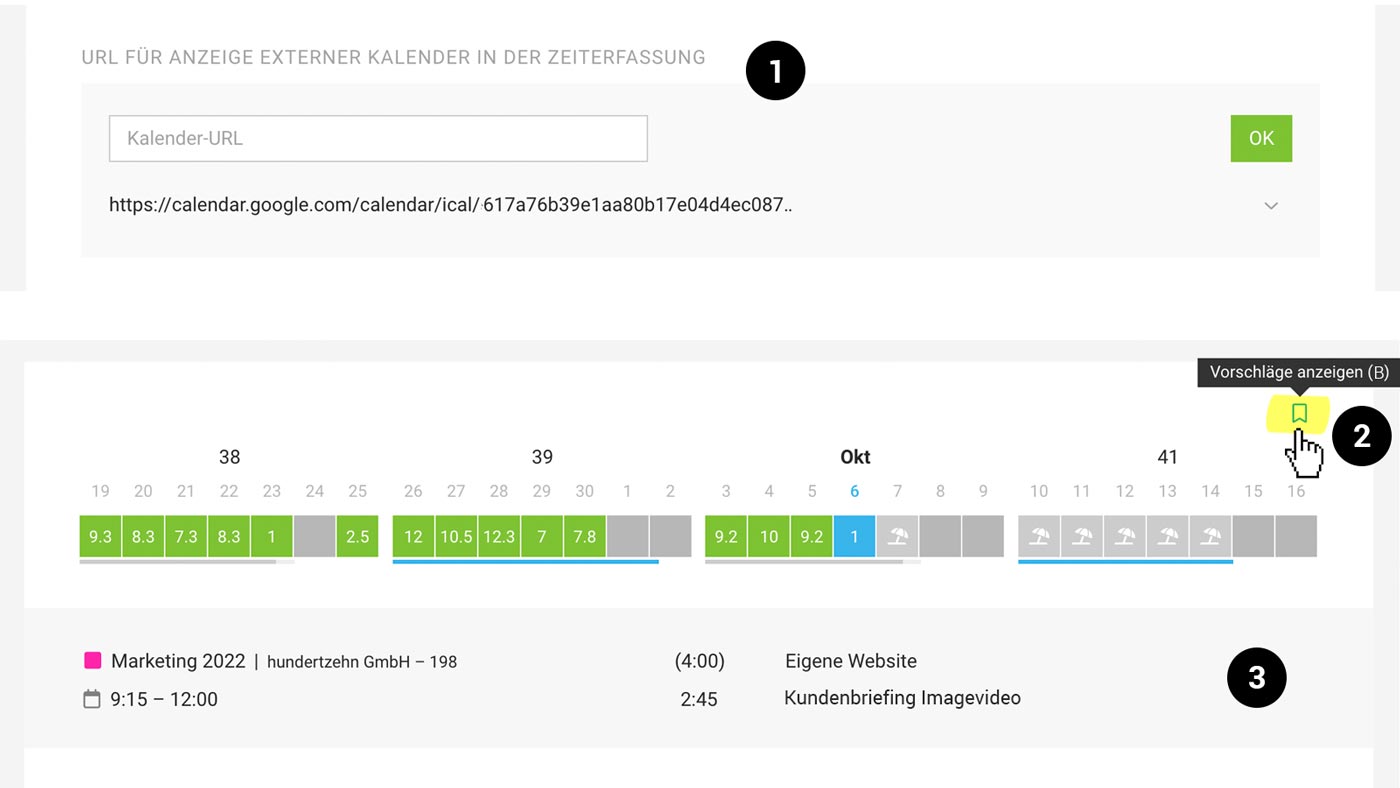 (English image not yet available)
In addition to displaying calendar appointments, you can also view planned projects and favourites:
» Time Tracking on Tasks
» Time Tracking on Favourites
Setting Up the Connection
1. Enter the URL of an external calendar in iCal format (.ics) under "External Calendar" in your profile.
2. Display appointments using the bookmark icon (keyboard shortcut "B") at the top right.
3. The appointments will then appear in the grey-shaded area of the time tracking, and you can directly create an entry from them by hovering over with the mouse.
Important: Use the private address (screenshot from the example Google Calendar):
 (English image not yet available)
» Assistance with Calendar Integration
2. Display appointments using the bookmark icon (keyboard shortcut "B") at the top right.
3. The appointments will then appear in the grey-shaded area of the time tracking, and you can directly create an entry from them by hovering over with the mouse.
Important: Use the private address (screenshot from the example Google Calendar):
(English image not yet available)» Assistance with Calendar Integration








