Article from
Creating B2B E-Invoices: XRechnung.
MOCO now also generates B2B E-Invoices, aligning with the upcoming requirement for companies in Germany to produce invoices in a machine-readable data format. The initial format is XRechnung – a pure data format already used for invoices to authorities.
The XRechnung
The data format without layout
The E-Invoice format "XRechnung" is now online. With this, you create the invoice as an XML file – a machine-readable data format. There is no layout or PDF. To help you understand the content easily, the XRechnung is visualized for you. You send the invoice as usual via email directly from MOCO. The XML file is sent because only the data is relevant. The recipient reads the XRechnung on their side and displays it with their accounting tool.
Recommendation: Switch gradually at your own pace
To become familiar with E-Invoices, we recommend using the legally provided transition phase and switching gradually. This way, you can gain experience and directly benefit from our phased development, with which we offer additional formats.
It's best to first create a test XRechnung, by saving a new invoice as a draft for a client after activation, which you can easily delete after the test.
It's best to first create a test XRechnung, by saving a new invoice as a draft for a client after activation, which you can easily delete after the test.
Creating E-Invoices in MOCO
1. Activate invoice format
2. Select for the client
3. Create invoices
2. Select for the client
3. Create invoices
1. Activate invoice format
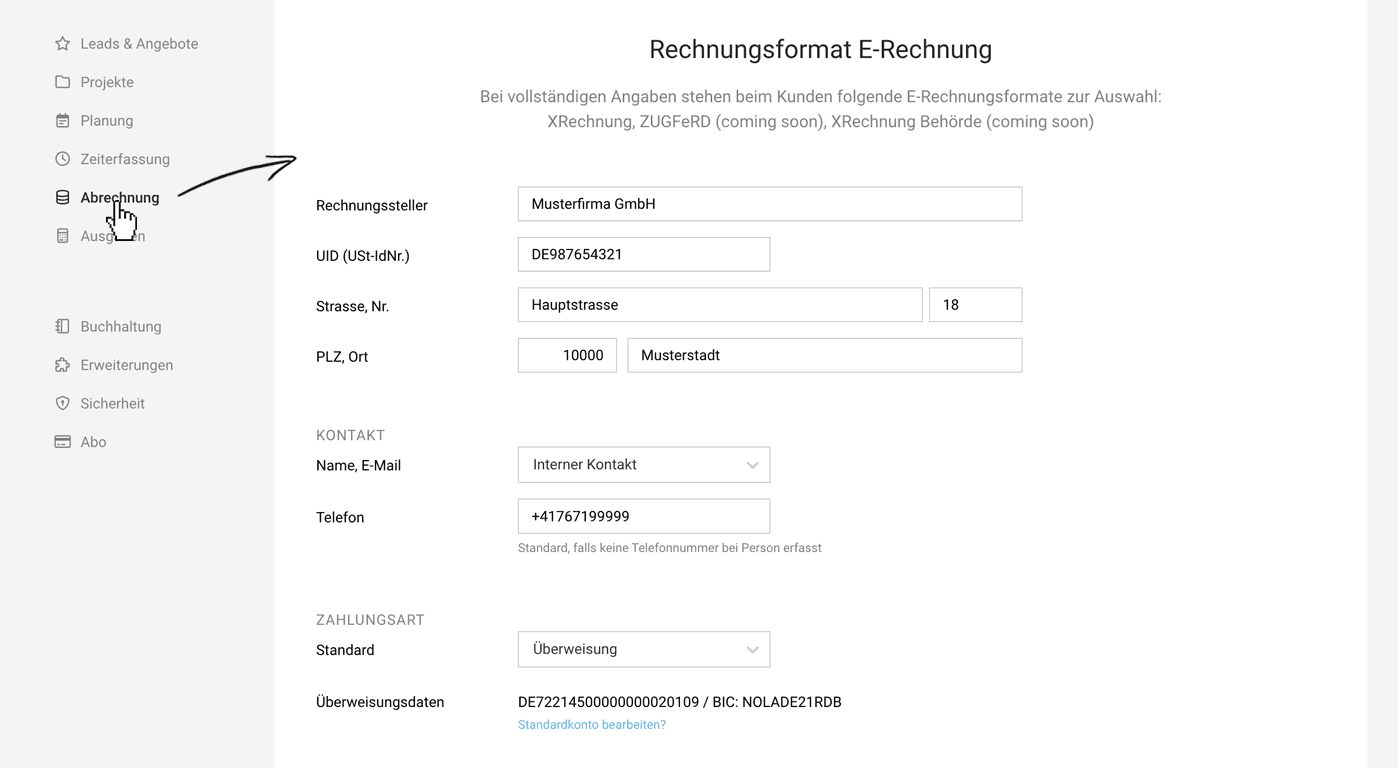
Activate the additional invoice format in the settings under "Invoicing" > "E-Invoice". This ensures that all necessary sender details meet the E-Invoice requirements.
 (English image not yet available)
(English image not yet available)Check sender details
Your sender data as the invoicer (seller), including contact information, must be correct and complete.
Choose standard payment method
You also select the standard payment method. For each client where you choose an E-Invoice format, this standard is preselected (adjustable). The payment method can also be overwritten on the invoice (top right).
- Choose "Bank Transfer" if this payment method, including account details, should be addressed to the recipient with the E-Invoice. For most in project business, this is the right choice.
- Choose "Neutral" if clients pay invoices very differently – e.g., by direct debit. With "Neutral," MOCO does not provide account details with the payment data. Information on how the invoice is settled can be placed in the closing text, which is transmitted with the XRechnung.
2. Select for the client
Now select the invoice format for the relevant clients (Edit) and adjust the payment method if necessary. MOCO then directly checks whether the client's invoice address meets the requirements. If the address is not recognized as structured, you must adjust it.
The setting affects all newly created invoices for the client
Opening an existing invoice in PDF format will not change it to another format.
The setting affects all newly created invoices for the client
Opening an existing invoice in PDF format will not change it to another format.
3. Create invoices
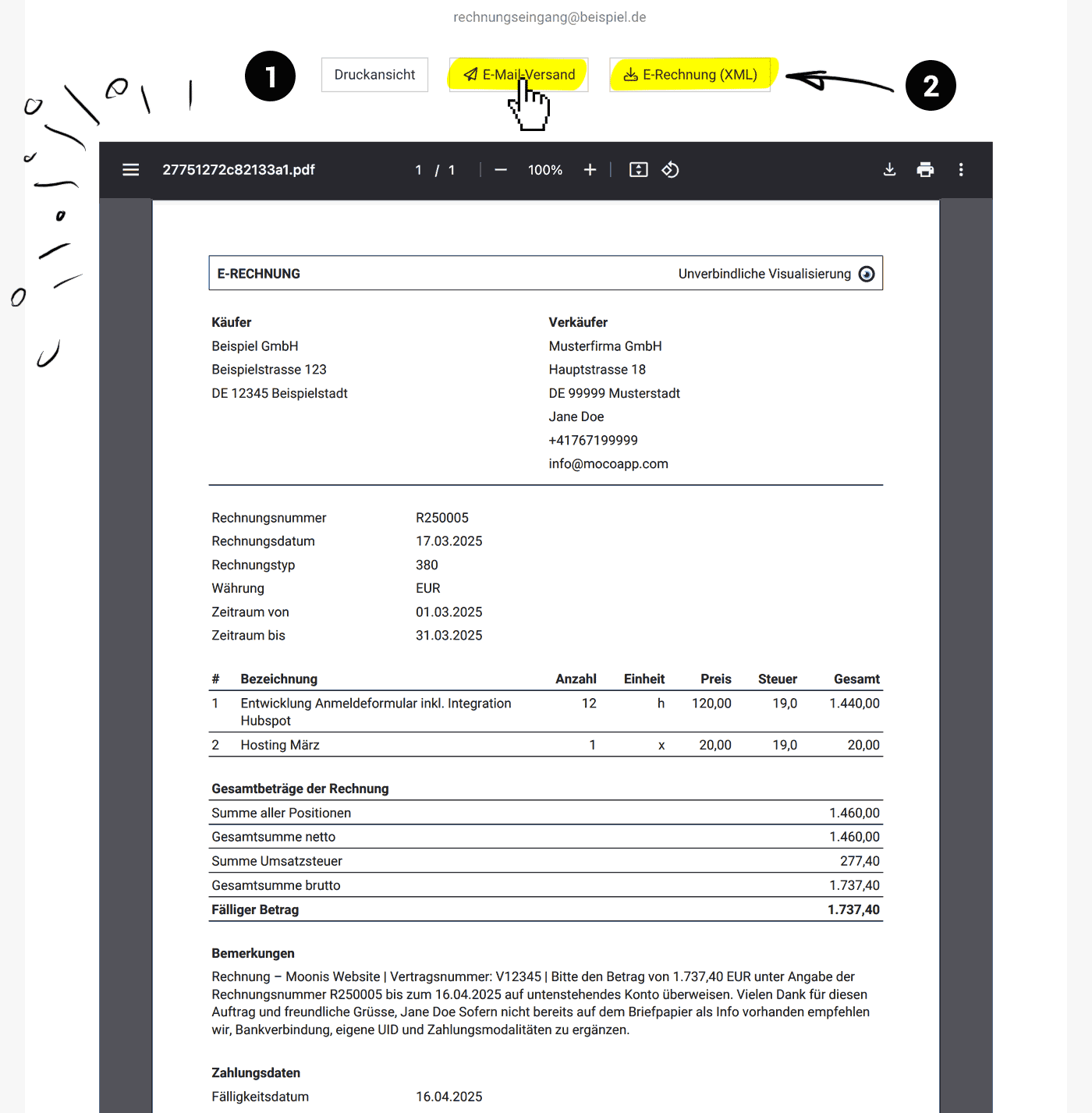
You now create invoices as usual. Whether individually or through mass invoicing – MOCO automatically creates invoices for clients in the new format. MOCO visualizes the XRechnung for you so you can understand which invoice data you are transmitting to the recipient.
 (English image not yet available)
(English image not yet available)Via "Print View" (1) you can download the visualization. Via "Email Dispatch" you send the invoice as usual & via "E-Invoice (XML)" (2) you download the XML invoice file.
Further important information
The XRechnung data format enforces a clear, structured invoice content – without unnecessary elements. The usual details from MOCO must conform to this structure.
Minor differences from the previous PDF
- Invoice title, introduction & closing text: Are output under "Remarks".
- Custom fields: Are output under "Remarks".
- Detail and lump sum items: Are output as detail items including description.
- Item group: Is output including description – without the individual items.
Challenges
- Invoice items like "Heading" or "Description" are not output.
Such filler items are not provided for in XRechnungen. Descriptive content is limited to the item name and an optional description.
Tip: Ensure during the proposal that the invoicing of individual items is clearly understandable. If you invoice based on effort, we recommend setting the invoice structure "Compact" as the standard – because in this variant, no headings are needed in project invoicing to understand the context. - V1 without automatic attachment
MOCO cannot yet send timesheets or external cost receipts with the XRechnung.
Solution: Download the XML file and send it via regular email with the attachment. - Reminders without XRechnung attachment
The reminder letter does not attach the XRechnung as previously with PDF invoices. This is actually not necessary – but was always a helpful service so that your client does not request the original invoice from you again.
Recommendation: Remove the note (original invoice in attachment) from the standard texts for the reminder levels. Send your client the XRechnung again only upon request.
Part of the imminent further development will be
- Enable attachments
- Capture order number directly
- XRechnungen to authorities (replacing Faktoora integration)
- ZUGFeRD format
ZUGFeRD is a hybrid format that combines a PDF invoice with machine-readable XML data. It sounds promising at first – but has its pitfalls: In case of doubt, the XML data counts. The information in the PDF must therefore match exactly. To seamlessly integrate this complex format into the MOCO environment, a lot of fine-tuning is needed. As always, our goal is to make the transition as easy and smooth as possible for you.
Helpful Links
- Validator for E-Invoices
If you want to verify whether an E-Invoice you receive or send complies with the guidelines, use this free online validator. - Visualization of E-Invoices (Online service of the tax administration): Elster
- More on the legal background and the introduction schedule
- FAQ on E-Invoice from the Federal Ministry of Finance
- Temporary free solution to create E-Invoices








