Article from
Quick Wins for Project Management.
Update with new tools for project managers: Budgets in hours, additional project contact, and extra options for project additional services.
 (English image not yet available)
Enter Budgets in Hours
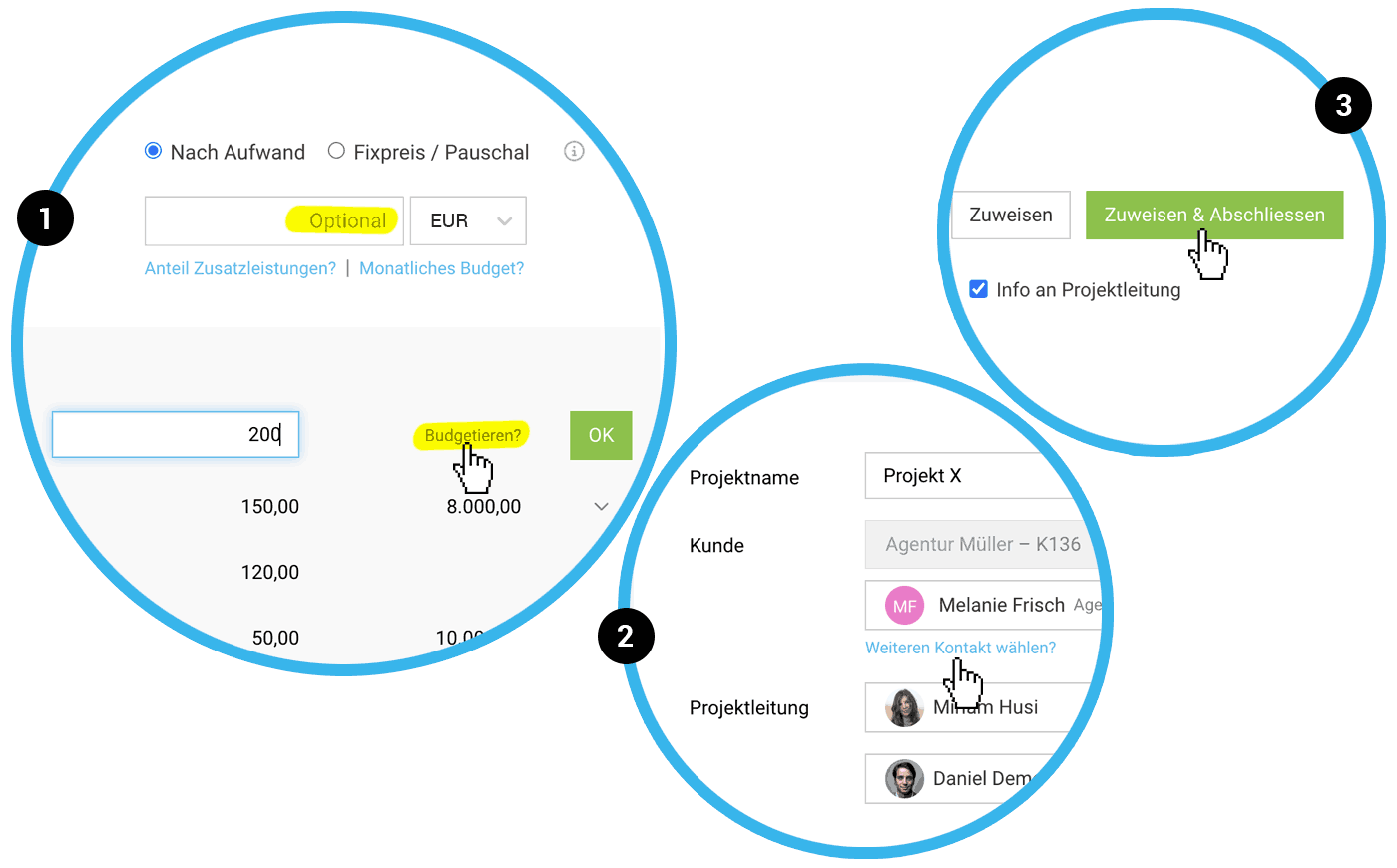
If you have a standard hourly rate set in the project, you can enter the project budget in hours, and MOCO will automatically calculate the amount. Simply enter the number of hours followed by an "h", and – voilà – you have your project budget.
This also works for individual budgets per service or person. If you don't use a standard hourly rate in the project, the hourly rate must be defined for the respective service or person so that MOCO can calculate the amount for you.
This also works for individual budgets per service or person. If you don't use a standard hourly rate in the project, the hourly rate must be defined for the respective service or person so that MOCO can calculate the amount for you.
Select an Additional Contact for the Project
If more than one responsible external person is involved in a project – e.g., a client representative or an external consultant – you can now add a second person to the project: After selecting the first contact, click on "Select another contact?" (2).
Complete the Additional Service Directly When Assigning an Expenditure
When assigning an expenditure to an already created additional service, there are now two options:
a) Choose "Assign & Complete" (3) if the assignment is complete. Since our analysis shows that over 90% of additional services are assigned only one expenditure, this is the new primary action. This saves you the step of selecting "Expenditure assignment inactive" for the additional service in the project.
b) Choose "Assign" if the expenditure assignment should remain active. Further expenditures can be assigned.
As before: If you assign an expenditure directly to the project and automatically create the additional service, the expenditure assignment is automatically set to inactive (=> assignment complete).
a) Choose "Assign & Complete" (3) if the assignment is complete. Since our analysis shows that over 90% of additional services are assigned only one expenditure, this is the new primary action. This saves you the step of selecting "Expenditure assignment inactive" for the additional service in the project.
b) Choose "Assign" if the expenditure assignment should remain active. Further expenditures can be assigned.
As before: If you assign an expenditure directly to the project and automatically create the additional service, the expenditure assignment is automatically set to inactive (=> assignment complete).
Expansion of Export for Additional Services
- New column "Expenditure Assignment" (active/inactive)
- Renamed column "Invoiced" to "Invoiced" similar to hours export
- New column "Invoiced on" (date)
- New column "Invoiced with Invoice" (specification of the invoice)
- Former column "Creator" becomes "Responsible" (the person is now selectable)








