Alter News-Artikel!
» Hier geht's zur aktuellen Online-Hilfe
Article from
Transfer Order: Automatically Capture Payments in Online Banking.
Tired of entering payments manually and individually in online banking? With this update, you can now create SEPA transfer orders and execute them through online banking.
Timely Payment
The payment is scheduled in online banking for one day (or the working day) before the payment deadline. This ensures the payment reaches the supplier on time.
Timely Payment
The payment is scheduled in online banking for one day (or the working day) before the payment deadline. This ensures the payment reaches the supplier on time.
Create a SEPA Transfer Order
Preliminary Steps
Enter your business account details in the settings under "Account" > "Currency & Account", and for all suppliers, include the IBAN. If settling personal expenses, also include the IBAN for your staff.
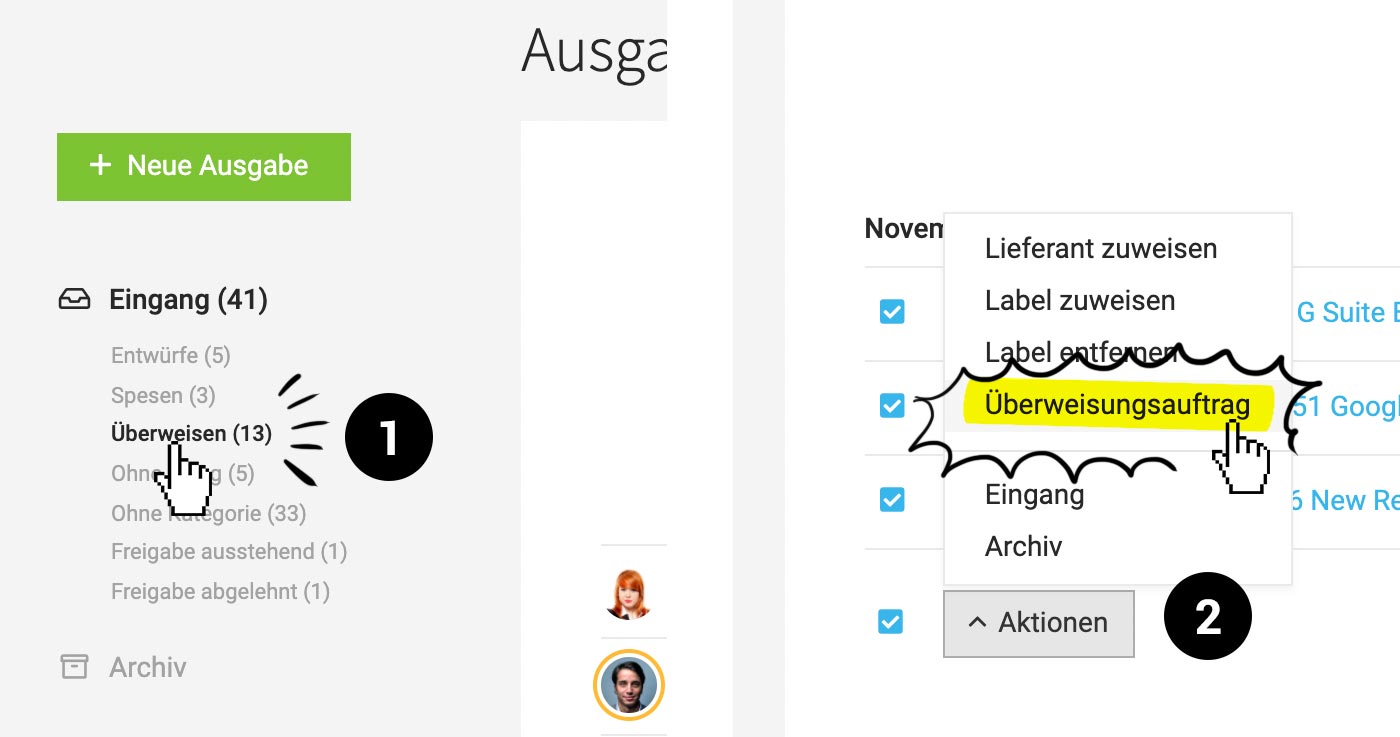
1. Use the smart filter (1) to filter all expenditures to be settled by transfer. Personal expenses are also considered.
 (English image not yet available)
2. Select the "Transfer Order" bulk action (2) or choose "Transfer Order" from the dropdown for a single expenditure on the right.
Enter your business account details in the settings under "Account" > "Currency & Account", and for all suppliers, include the IBAN. If settling personal expenses, also include the IBAN for your staff.
1. Use the smart filter (1) to filter all expenditures to be settled by transfer. Personal expenses are also considered.
(English image not yet available)2. Select the "Transfer Order" bulk action (2) or choose "Transfer Order" from the dropdown for a single expenditure on the right.
3. MOCO checks if all details for a successful transfer are present.
4. After adding any missing information (linked expenditure opens in a new browser tab), refresh the view.
5. Upon confirmation with "OK", a transfer order (XML file) is created for all selected expenditures.
6. Then upload the XML file to online banking.
Traceability
All created transfer orders can be tracked under "Payments" at the top right "Export": List of all created transfer orders, included invoices (Excel file), XML for re-download.
By creating the transfer order, MOCO automatically records the payment in MOCO (similar to the online banking schedule) and informs via a comment in the expenditure history (under "Notes & Files" on the expenditure about the process).
4. After adding any missing information (linked expenditure opens in a new browser tab), refresh the view.
5. Upon confirmation with "OK", a transfer order (XML file) is created for all selected expenditures.
6. Then upload the XML file to online banking.
Traceability
All created transfer orders can be tracked under "Payments" at the top right "Export": List of all created transfer orders, included invoices (Excel file), XML for re-download.
By creating the transfer order, MOCO automatically records the payment in MOCO (similar to the online banking schedule) and informs via a comment in the expenditure history (under "Notes & Files" on the expenditure about the process).








