Alter News-Artikel!
» Hier geht's zur aktuellen Online-Hilfe
Article from
Invoices: Attach Receipts.
How to attach receipts to the invoice:
1. Select additional services (usually external costs) for invoice creation.
2. In the form under the closing text, you can choose whether the receipt is desired as an attachment (see example image).
3. After saving, the receipt is integrated into the invoice PDF.
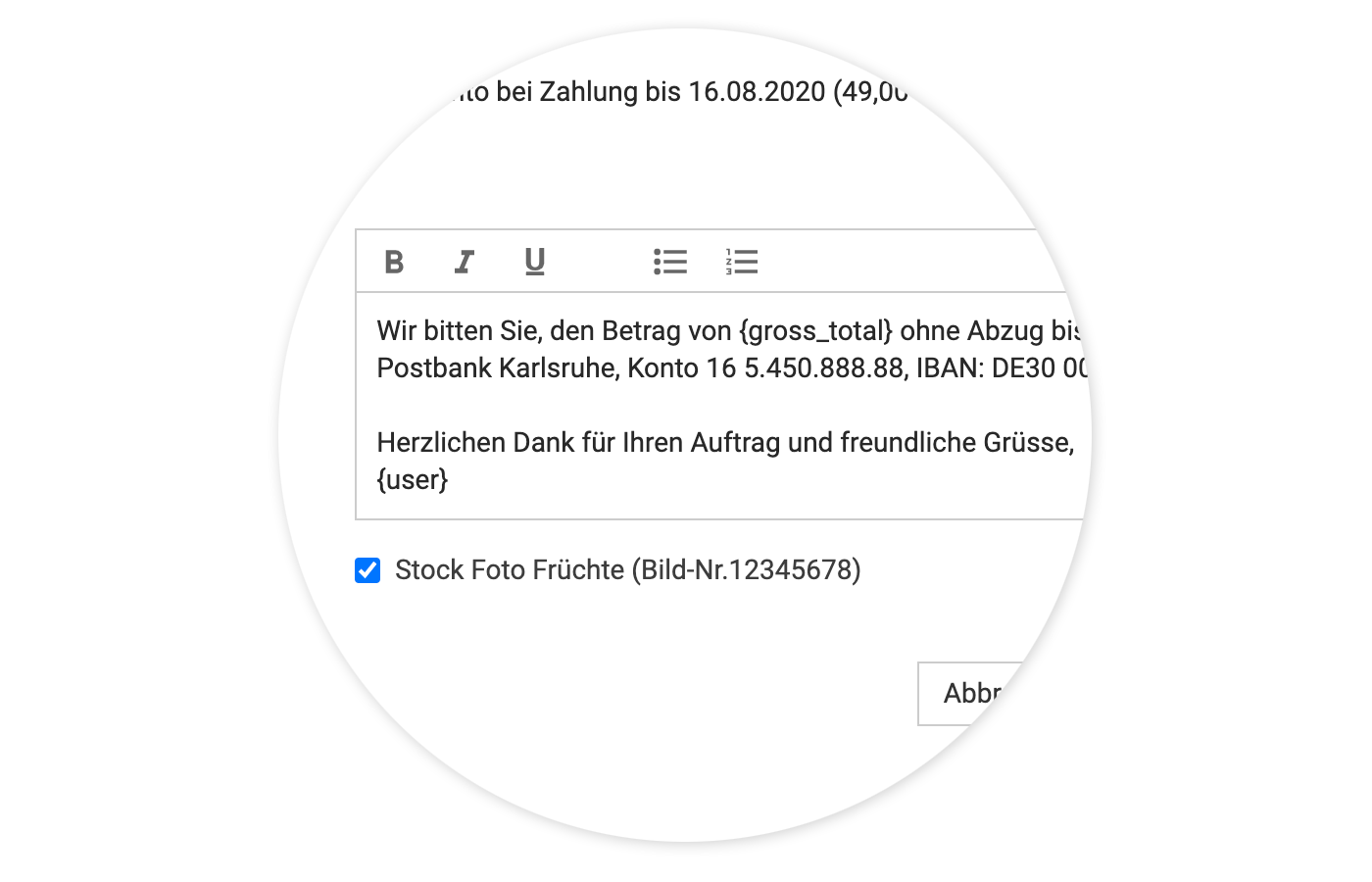 (English image not yet available)
PDF is Mandatory
It is important that the receipt for the expenditure/additional service is already uploaded in PDF format. MOCO can only attach receipts in the form of PDF pages. If you need to scan receipts first, we recommend using a scanner or a smartphone app. This allows you to quickly and easily create small PDFs that do not disproportionately increase the invoice file size.
1. Select additional services (usually external costs) for invoice creation.
2. In the form under the closing text, you can choose whether the receipt is desired as an attachment (see example image).
3. After saving, the receipt is integrated into the invoice PDF.
(English image not yet available)PDF is Mandatory
It is important that the receipt for the expenditure/additional service is already uploaded in PDF format. MOCO can only attach receipts in the form of PDF pages. If you need to scan receipts first, we recommend using a scanner or a smartphone app. This allows you to quickly and easily create small PDFs that do not disproportionately increase the invoice file size.








