Alter News-Artikel!
» Hier geht's zur aktuellen Online-Hilfe
Article from
Personal Expenses: Record, Assign to Projects, Approve, Pay.
No more tedious paperwork: Now even managing personal expenses is enjoyable! The simple recording process and streamlined workflow provide clarity, traceability – and save time.
 (English image not yet available)
Workflow Overview: The employee sends receipts via email to MOCO or records them directly in the software – and submits the personal expenses report. The person responsible for their expenses checks the receipts and approves or rejects them. Upon approval, a company expenditure is created from the personal expenses report.
(English image not yet available)Workflow Overview: The employee sends receipts via email to MOCO or records them directly in the software – and submits the personal expenses report. The person responsible for their expenses checks the receipts and approves or rejects them. Upon approval, a company expenditure is created from the personal expenses report.
Activate Personal Expenses for Account
In the settings under "Expenditures" > "Categories" activate personal expenses recording.
Predefined categories can also be marked for personal expenses. These categories will then be available for the employee to select. If you define the standard VAT rate for a category in advance, it will be automatically suggested to the employee when selecting the category.
Predefined categories can also be marked for personal expenses. These categories will then be available for the employee to select. If you define the standard VAT rate for a category in advance, it will be automatically suggested to the employee when selecting the category.
The Employee Manages Their Personal Expenses in the Profile
Record Receipts
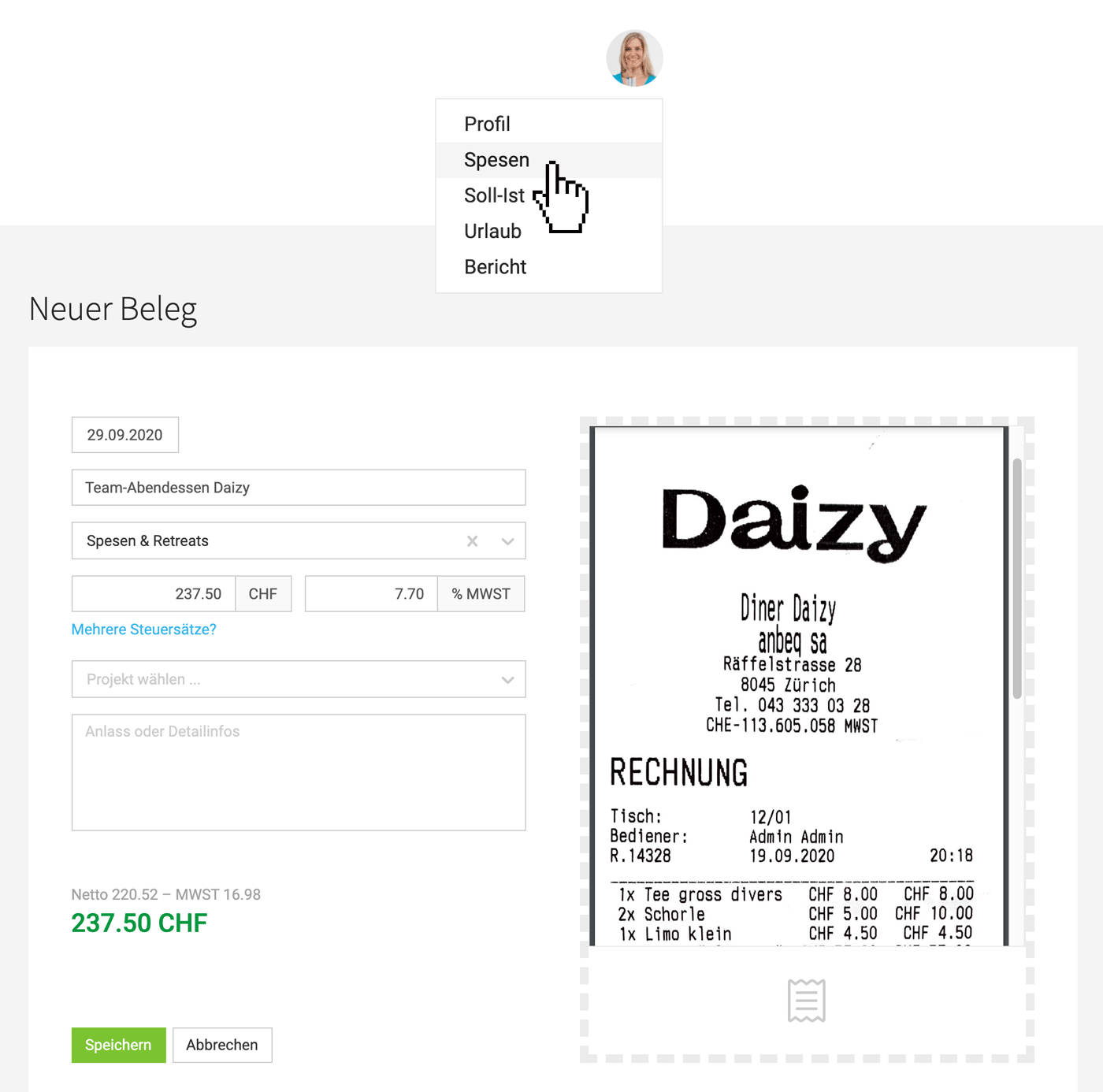
a) Record in the profile area (click on the profile picture at the top right).
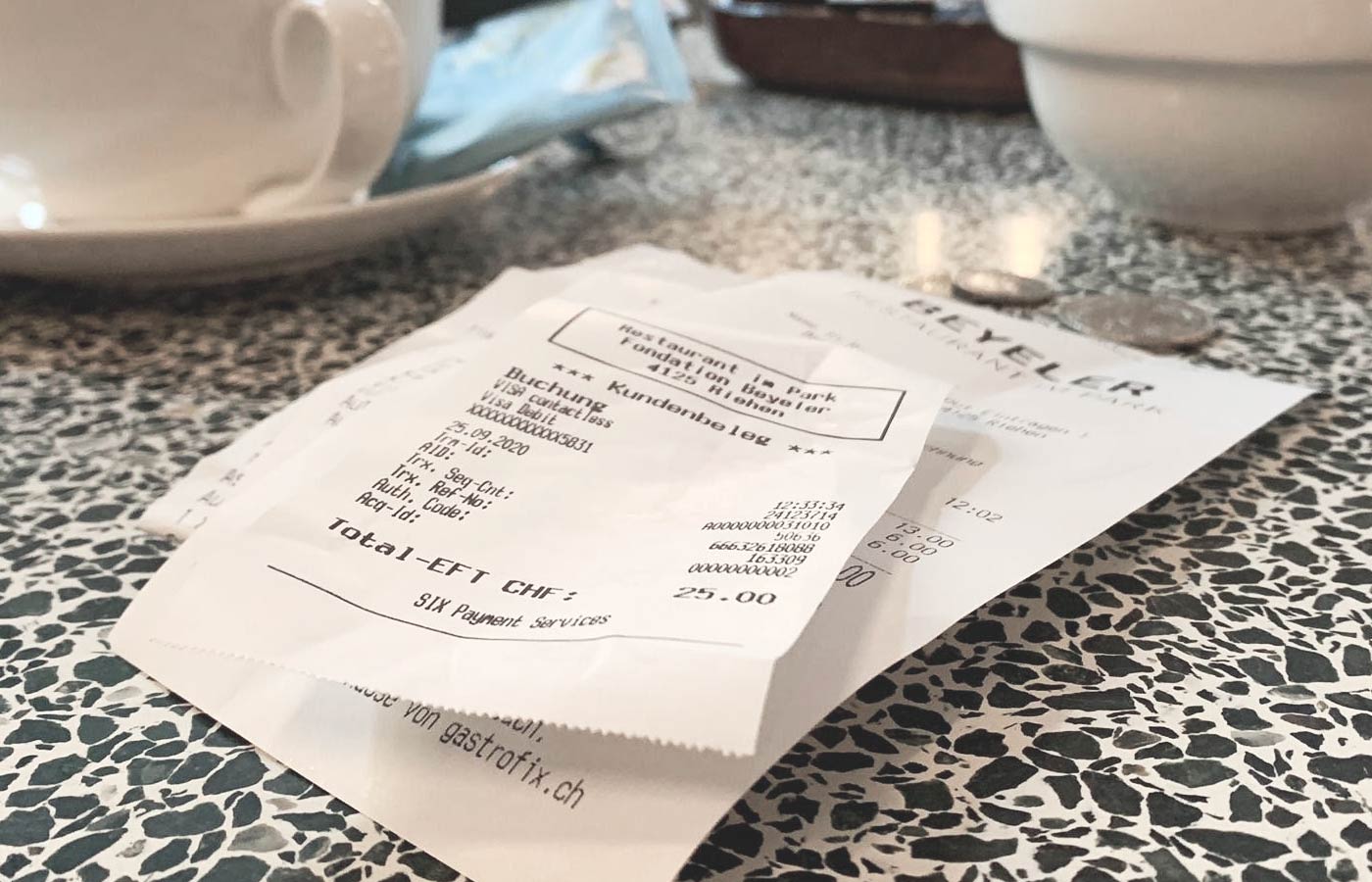
b) Send an email to MOCO. To do this, scan the receipts (e.g., with the Adobe Scan app) and send them as a PDF to the email specified in the profile area. A personal expense entry is created for each PDF. JPGs and PNGs are currently not considered (as images are often used in signatures and would then create a receipt).
 (English image not yet available)
Add Information
Required for submission: Date, Title, Amount > 0
Optional: Category, Project, Billable, Detailed Info, Receipt (PDF, PNG, JPG)
Submit
Required for submission: Date, Title, Amount > 0
Optional: Category, Project, Billable, Detailed Info, Receipt (PDF, PNG, JPG)
Submit
Select accumulated receipts under "Personal Expenses" in the profile and submit them as a personal expenses report. Choose a contact person and add a comment if necessary.
Responsible Person Approves Under "Expenditures"
Contact Person is Informed
The chosen contact person is informed via email about the submitted personal expenses report.
Review
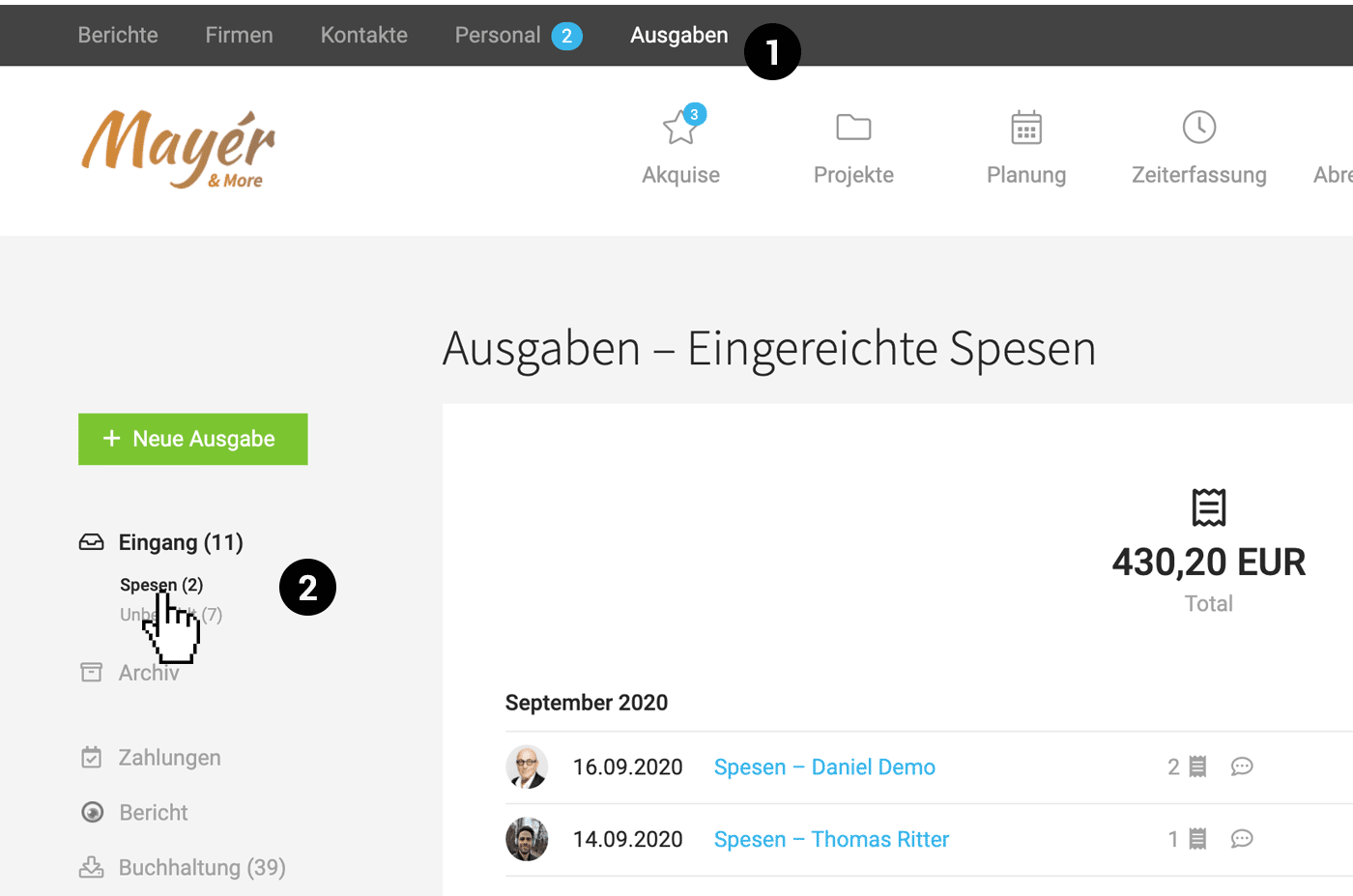
Under "Expenditures" > "Incoming" > "Personal Expenses" (1,2) all open personal expenses reports are collected and need to be reviewed:
- Complete or adjust details
- Remove individual receipts if necessary. They are returned to the employee.
 (English image not yet available)
Approve or Reject
Upon approval, a regular expenditure with the corresponding items is created from the personal expenses report. Additionally, the additional service for the assigned project is created (for cost tracking/rebilling purposes).
The personal expenses report can also be rejected (action at the top right "Thumbs Down Symbol"). The receipts are returned to the employee.
Pay
After transferring the amount to the employee, the payment is recorded as usual. The employee can track in their profile that the personal expenses report has been settled.
Find Personal Expenses Reports Later
- In the expenditures archive, you can specifically filter for personal expenses.
- Under "Personnel" for the person, all personal expenses reports are listed.
-----------------------------------------------------------------------------------------------------------------------------------
Note for all who previously had exclusive access to Personal Expenses Beta
The previous menu item "Personal Expenses" no longer exists – personal expenses are now listed directly under "Expenditures" (see above "Review and Approve"). ALL personal expenses reports that have not yet been paid are offered here (again) for approval. Upon approval, the company expenditure and the additional service for the assigned projects are automatically created!








